
Improvement
Open a member group's schedule from its settings page
The member group page now points to where you set which EVSEs the group can charge on, and when.
- Stage
- Early access
- Available to all customers
- To be confirmed
- Product
- Monta Hub
- Posted
What changed
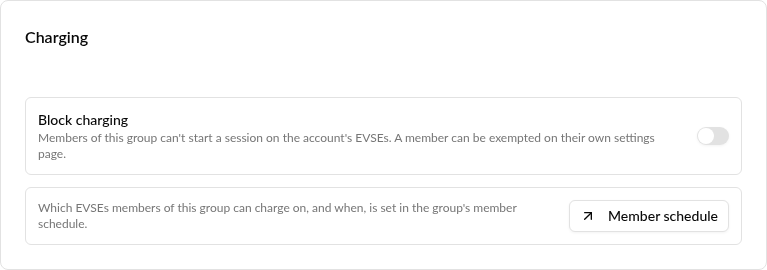
Until now, a member group's settings page only showed the "Block charging" switch on its Charging card, and nothing there said where to limit the group to some EVSEs. Now the Charging card explains that which EVSEs the group's members can charge on, and when, is set in the group's member schedule, with a "Member schedule" button that opens it.
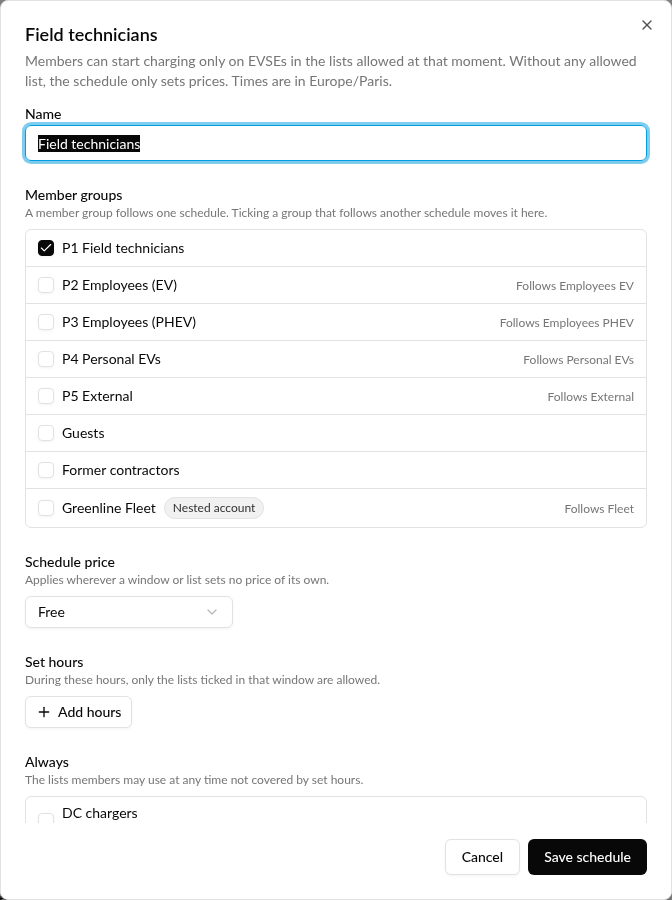
The button opens the account's Schedules tab on Members, with the group's schedule open. If the group follows no schedule yet, it opens a new one with the group already picked.
Your existing setup stays as it is. Member schedules, blocked groups and their members are not changed.
Why it matters
Operators setting up a member group look for EVSE access on the group's own page. The button takes them straight to the member schedule, where they can allow the group on chosen EVSE lists at all times or only at set hours, without creating separate accounts for each group of drivers.
Who it's relevant for
Operators who manage member groups with the member role and have Member schedules switched on. Member groups with the admin role can't follow a member schedule, so their Charging card shows no button. The button also shows while a group blocks charging.
Where to find it
Accounts, then an account, then Members, then Member groups. Open a group and look at its Charging card.
Availability
Available now in early access to operators who have Member schedules switched on.