
Changelog
New features, improvements and fixes across the Monta platform. The roadmap shows what is coming; the changelog shows what is already live.
233 updates
November 2026
16 updatesIntra-network agreements: sell and resell charging between Monta operators
Until now, every Monta operator's public charge points had one public price for every driver and every app on the Monta network. Deals between operators had to happen off the platform. We're bringing those deals into the Monta Hub. A charge point operator will be able to offer its charging to another Monta operator at a price of its own. That operator resells it to its drivers, under its own brand and at its own price. Release ETA: Week of 9th Nov 2026 For charge point operators: send an offer Offer a markup or a discount on your price, or the rates of one of your own price groups, including ones that follow spot prices. Set AC and DC separately if you need to. Choose the accounts whose charge points the offer covers, or all of them, including charge points you add later. Choose which Monta operators get the offer, or offer it to all of them. Add a start date and, if you want, an end date. For e-mobility service providers: set your drivers' price See the offers you've received from other Monta operators next to your roaming tariffs, under Outbound roaming. Pass the price on, add a markup or a discount, or charge one of your own price groups. Apply it per operator, or to all of them, for all your accounts or selected ones, with or without drivers who pay with their own wallet in your app. Every session is priced when it starts. Your drivers pay the price you set. Drivers without an agreement keep paying the public price, exactly as today. Coming next: Monta will settle each session as two sales between your Monta wallets: the driver pays the e-mobility service provider, and the e-mobility service provider pays the charge point operator its offer price. We're starting with a small group of operators. To be among the first, contact your Monta CSM.
Read more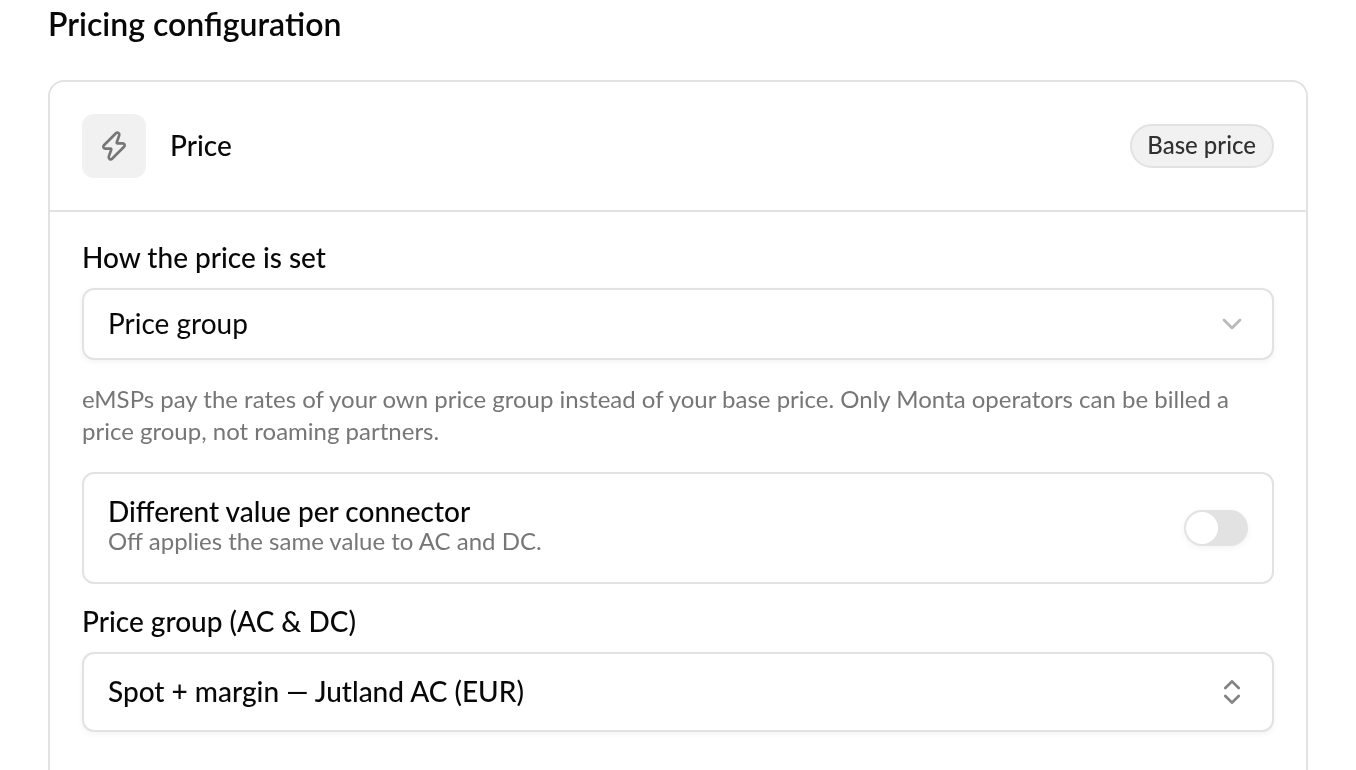
Plugsurfing roaming network in Monta Managed Roaming
Monta drivers now reach 938,200 usable charge points across 27 European countries, with nearly 500 operators added through one connection.
Plugsurfing's roaming network is now available as a roaming source under Monta Managed Roaming. Monta connects to it through a single OCPI connection. It went live in two steps: 9 October: about 50 new charge point operators, mostly in the UK, the Netherlands and the Nordics. 3 November: the 140 operators we previously reached through Hubject moved to Plugsurfing. Today: Nearly 500 operator IDs send about 319,000 public charge points through this connection. 102,000 charge points are new to Monta. Biggest gains: UK +30k: Connected Kerb, Zest, MFG, ChargePlace Scotland, Be.EV. Germany +15k: EWE Go, vaylens, WALL-E, EDEKA. Netherlands +13k: Laadnet, AVIA, Blue Current. Spain +8k: Endesa X, IBIL, Wenea. Poland +5k: Greenway, Elocity, ORLEN. Freshmile, a major French operator, now reaches Monta through Plugsurfing instead of Gireve. 938,200 usable charge points in Europe for Monta drivers in total, 12% more than before, counted once each. More accurate prices. Before, Monta had to set prices for Hubject operators by hand as cautious averages, so drivers sometimes saw a price far from the real one at the charger. Plugsurfing passes on the operator's own tariff where it can. Where prices still have to be set by hand, Plugsurfing does it with a dedicated team and more experience across the market. Lower prices on the same chargers: on 2,513 chargers priced before and after, the average fell from €0.78 to €0.74/kWh (−5%), and 62% got cheaper. Operators get much broader coverage, prices closer to what drivers pay at the charger, and competitive roaming rates without a separate connection to each network. Big platforms such as chargecloud and ChargePoint now come through as the individual operators behind them, so drivers see the real brand at the charger. Monta stays the settlement and support counterparty, so invoicing and disputes run through one partner instead of many. On Monday 9 November: TotalEnergies (including Source London) moves from Gireve to Plugsurfing for the same reason as Freshmile: more accurate prices. IONITY moves to Plugsurfing. Our aim for 2026 is to pass 1 million usable charge points in Europe for Monta drivers, through direct OCPI connections, ENAPI, Plugsurfing and other partners. Operators running eMSP roaming under Monta Managed Roaming, and their drivers.
Read moreApply price recommendations in bulk, or automatically on a schedule
Apply recommended prices to many price groups at once, or let a workflow apply them every week within limits you set.
There are two new ways to act on Monta's price recommendations in Hub. Until now you applied a recommendation one price group at a time. Now you can apply them to many price groups in one go, or let a workflow apply them for you on a schedule. Bulk apply: on the Price recommendations page, select the price groups you want, or apply to everything your filters show. You review the current and new price for every price group, confirm, and see the outcome per group: applied, already applied, skipped or failed, with the reason. Automate with a workflow: turn what you're looking at into a scheduled workflow with one click, from the whole view, a selection or a single price group. A ready-made template runs every Monday at 07:00. All pricing recommendations now live in one place. The Apply recommended prices menu item is now called Price recommendations, and Pricing benchmarks no longer has its own menu item. Price recommendations has two tabs: Price groups: the list of price groups you act on, where you apply recommended prices. This tab opens first. Locations: the per-location benchmark view you used under Pricing benchmarks. Both tabs share the same model switcher and summary at the top. Old Pricing benchmarks links and bookmarks open the Locations tab, with their filters kept. Your prices can follow the recommendations without anyone clicking through the page group by group, and you stay in control of how far and how fast they move. Every apply, whether one click, bulk or a workflow, goes through the same checks. No change larger than 12% is ever written, the same recommendation is never applied twice, and a price group that does not qualify is skipped with a reason without stopping the others. Every change is recorded, including whether it came from a manual apply, a bulk apply or a workflow. Direction: automate only price drops, only increases, or both. Speed: set the largest increase and the largest decrease separately, as a percent of the current price, up to 10%. Frequency: choose how often the workflow runs. Scope: everything matching your filters, a hand-picked set, a search result, or a single price group, including a single location's local price group. Stay informed: have the workflow notify your admins when price groups were blocked, or choose to only be told and apply nothing. Operators who use price recommendations in Monta Hub. Bulk apply is for everyone who can update prices. Automating with a workflow is for operator admins. Available now. In the first version, recommendations are applied where the recommendation is to raise or lower the price, every location in the price group agrees, and the price group supports direct apply. Price groups that carry tariffs are handed to the price editor instead. A workflow handles up to 100 price groups per run, and applying to everything in bulk is capped at 100 as well.
Read moreBusiness sign-up: one link for businesses to sign up as professional accounts
Hand out a link, and businesses charging on your network sign themselves up on a professional account under your operator.
Available now in early access: operators can turn on business sign-up in Monta Hub and get a link to hand out to their business customers. A business opens the link, enters its company details once, confirms them from an email and logs in to Monta with the same email. It then gets a professional account under your operator, next to the private account every Monta login has. The form asks for an email, company name, VAT number (optional, checked for the chosen country), address and country. No login is needed to fill it in. Monta emails a confirmation link that is valid for 7 days. Only a confirmed request can become an account, so typing in someone else's email does nothing. After confirming, the page offers "Create Monta login" and "Log in". Any Monta login works: the Monta app, your own app or Hub, and the order of the steps does not matter. The "Business sign-up" tab lists every request with company, email, VAT number, city, status ("Awaiting login" or "Account created") and the date it was submitted. Drivers who sign up in your app start on a private account, and a private account cannot be billed by invoice. Until now, each business had to switch its account to professional afterwards, or you had to switch it for them. With one link, businesses sign themselves up as professional accounts, billed by your settings for professional accounts, such as invoice. It works with or without your own app. Operators with business customers charging on their network, such as transport companies. Turning it on and seeing the requests takes permission to edit your operator. In Hub, open Operator settings and go to the "Business sign-up" tab. Turn business sign-up on. This creates your link. Share the link with your business customers. Follow the requests in the list on the same tab. If the link was shared too widely, choose "New link" and the old one stops working. Turning business sign-up off removes the link and stops confirmation links already sent. Requests already sent are kept. Business sign-up is in early access for selected operators. The "Business sign-up" tab appears in Operator settings once it is turned on for your operator.
Read more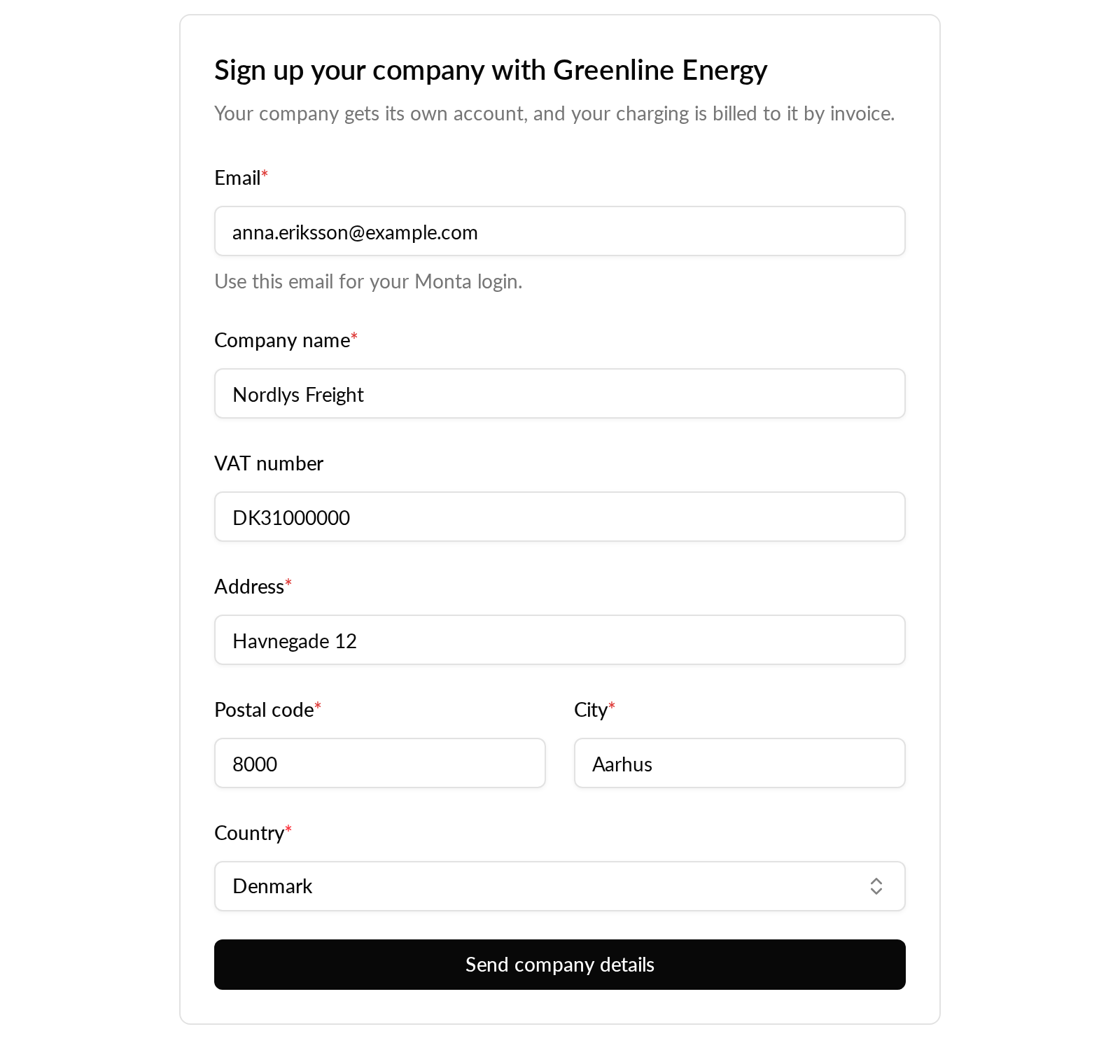
Charging station claims: rules for the charging stations you sell or support
Set rules in Hub so the charging stations you sold or support move under your operator, not stay in a driver's personal account.
Available now in early access: operator admins can set up charging station claim rules in Monta Hub. A rule describes the charging stations that belong with you: one brand, optionally only some models, and a match on the charging station identifier. When a driver adds a matching charging station to their own account under Monta, it moves into a private account under your operator, set up from one of your private account templates. An identifier can match in three ways: A prefix, optionally with an exact length. A range of identifiers of the same length. A list of identifiers, pasted or uploaded as CSV, up to 10,000 per rule. Each rule also says what happens when a driver adds a matching charging station: Ask the driver, the default. The account owner chooses to move it to you or keep it in their own account. Without an answer, it moves after 14 days. Move it straight away. It moves as soon as it is added, without asking. The owner is told by email and can move it back at any time. Monta approves this choice separately, and switching a live rule to it sends the rule back for approval. Charging stations added before a rule went live are always asked about first, whichever option the rule uses. The owner answers on a page in Hub, signed in with their Monta login. It shows your operator and logo, the charging station, what moving means, your optional notice, and the date it moves if they do not answer. After a move, the same page lets them move it back to their own account. Before you submit a rule, a dry run shows what it would do: how many charging stations added in the last 12 months it would have claimed, how many match today, how many matching identifiers belong to another brand, and whether another operator's rule could match the same charging station. A rule with conflicts cannot be submitted. Monta reviews every rule before it claims anything. If you have no account template you can use yet, the rule form says what one needs: it applies automatically to private accounts and allows editing EVSEs. "New template" at the bottom of the template list opens the template form in a new tab, so your rule is not lost, and the new template is in the list when you come back. Today, a driver who buys a charging station from you and adds it in the Monta app ends up with it in a personal account, where you cannot see or support it, and it has to be moved across by hand. With a rule, it moves to you, with the owner's agreement or straight away, and gets your own account template, so your team can support it. The driver stays the owner of the account and can move it back. Operators that sell or support hardware, such as manufacturers, resellers and installers with their own operator. Rules are managed by operator admins. In Hub, open Account settings and go to the "Charging station claims" tab. Create a rule: choose the brand, optionally the models, the identifier match, the account template and what happens when a driver adds one. No suitable template yet? Choose "New template" in the list. Test an identifier against a prefix or range rule, then run the dry run. Submit the rule for approval. You can pause, resume or delete it later. Charging station claims is in early access for selected operators. Claiming has not started yet. Until it does, rules can be written, tested and submitted, but no charging station is claimed and no owner is asked.
Read more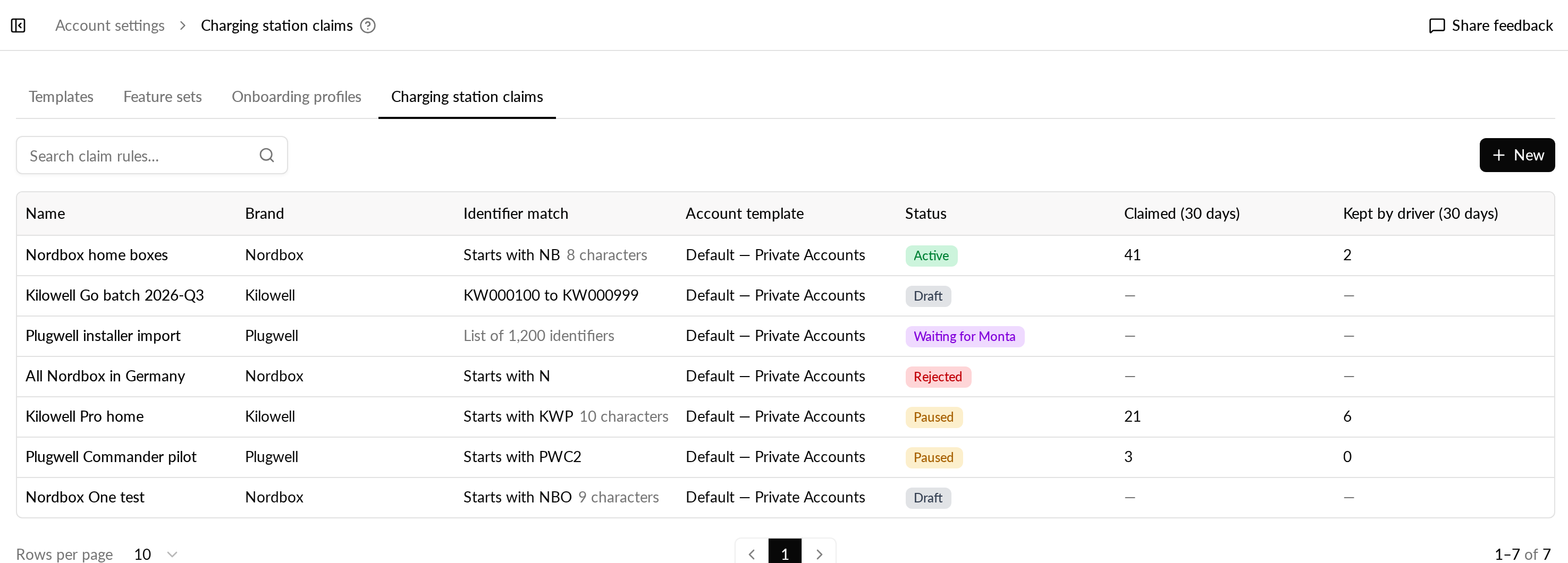
Switch auto top-up and change billing method for many accounts at once
Manage how your accounts pay from the Accounts list, instead of one account at a time.
We're working on new bulk actions on the Accounts list in Monta Hub. You'll be able to select many accounts and switch auto top-up on or off, or change their billing method to Pay as you go, monthly invoice or operator transactions, in one step. Each account will also get an Auto top-up card on its Payment tab, under Settings, so you can switch it on or off for a single account. Switching auto top-up on needs a saved card and a completed identity check. Accounts without them are skipped, and the result tells you why. An account keeps its own top-up amount. Accounts without one get the amount you enter, or the default amount your new cards get. Accounts billed by invoice move to Pay as you go when you switch auto top-up on. The confirmation tells you before you go ahead. Moving accounts to monthly invoice sends one invoicing request per account for Monta to approve. Moving accounts off invoicing takes effect right away. A summary shows how many accounts changed, how many were skipped and how many failed, and you can retry the failed ones in one click. If you stopped offering wallet top-up in your app, some accounts may still have auto top-up on from before. Your default auto top-up setting only affects cards added later, so it does not help with these accounts. The same applies when you move customers off invoicing. With the bulk actions you handle all of them in one go. Operator admins and managers with permission to edit accounts, especially operators that change which payment options they offer their customers.
Read more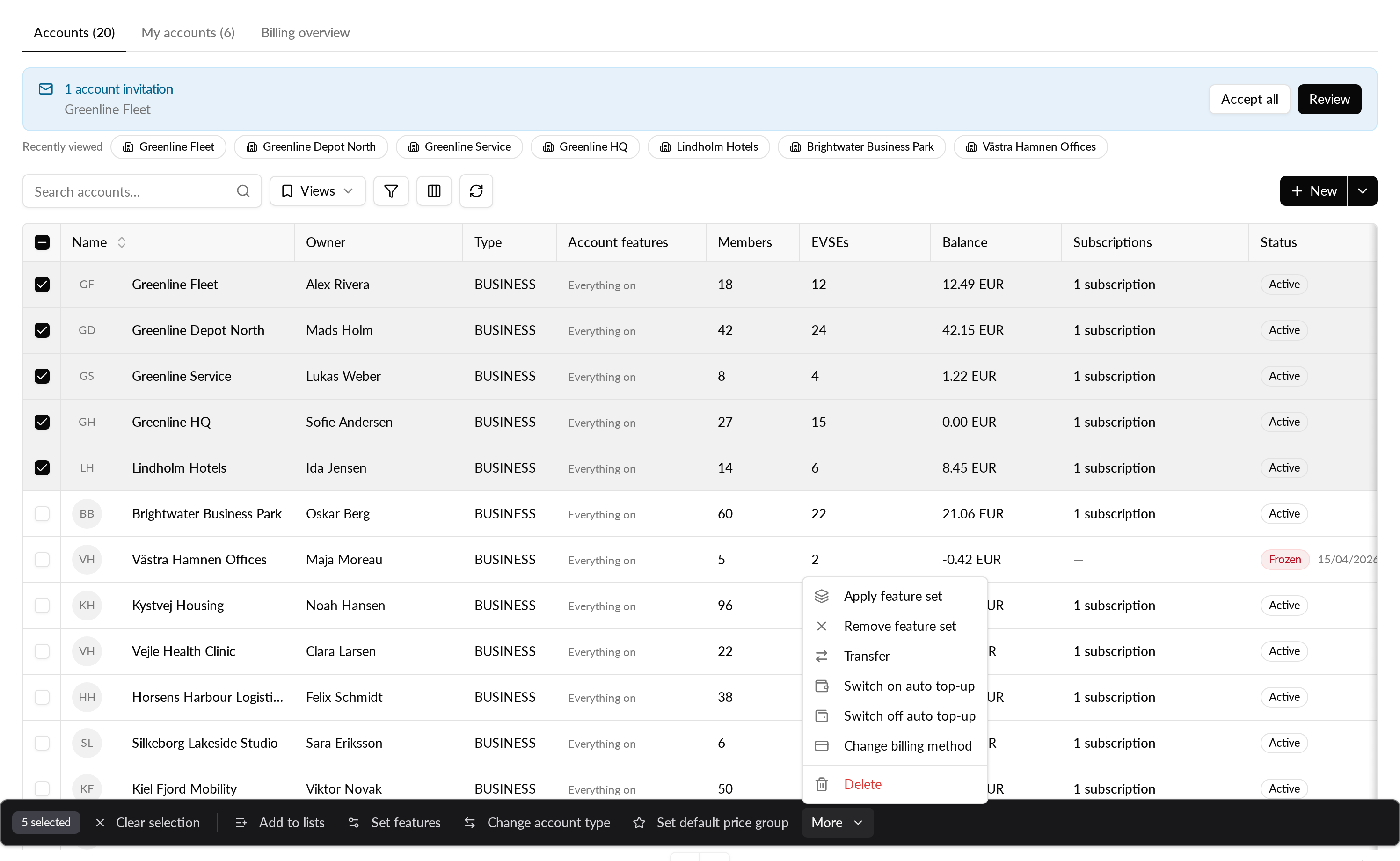
Favorite EVSEs, charging stations and locations in Hub
Star the ones you work with most and find them at the top of the Network page.
You can now favorite EVSEs, charging stations and locations, as you already can with accounts. A star sits next to the name at the top of each EVSE, charging station and location page. Your favorites show in a Favorites row above the EVSE, Charging stations and Locations tables on the Network page, and a star marks each favorited row in those tables. Favorites are kept per operator, so if you work across several operators, each one has its own list. You can keep up to 50 favorites of each type per operator. Recently viewed has moved to make room. Until now, the items you visited showed as chips above the tables on the Network page. Now the Favorites row takes that place, and your last 5 visited items open from the history button next to each table's search field. Charging stations are included too. The same recently viewed EVSEs, charging stations and locations also show when you press Cmd+K, latest visit first. The EVSEs, charging stations and locations you check every day are one click away on the Network page, without searching for them each time. The places you looked at recently are one keystroke away from anywhere in Hub. Open an EVSE, charging station or location page. Select the star next to its name. Select it again to remove the favorite. Go to the Network page and open the matching tab to find it in the Favorites row.
Read more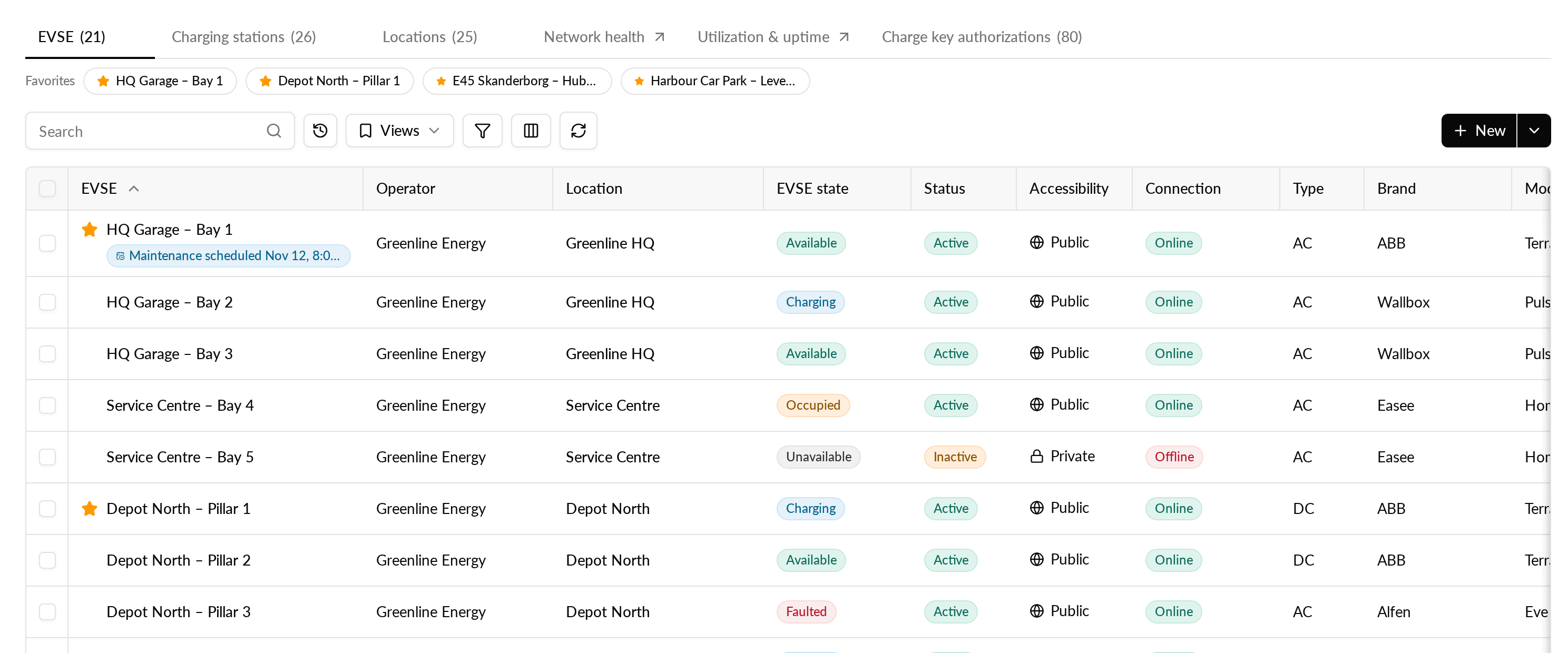
Charging curve in the Monta app: charging speed, energy and battery level over time
Drivers can follow how their charge went, from start to finish, and see for themselves why it was slow or stopped early.
We're working on a charging curve in the Monta app. Drivers will see it on the live charging screen, as a row they can expand, and on the charge summary. Tiles above the curve will show the peak charging speed, the energy charged and the battery level (where available) from start to end. Tapping a tile will show those measurements over the whole charge. During a live charge it updates as new readings come in. Drivers can see whether the charge reached the speed they expected, so fewer of them contact support about slow charges. If the location or a charging rule set a battery limit, the curve shows that too, so drivers know why a charge stopped early. Operators whose drivers use the Monta app. The curve only shows the readings the charging station sends. For example, the battery level needs a station that reports it. It's only available for charges on Monta's own network, not roaming charges.
Read more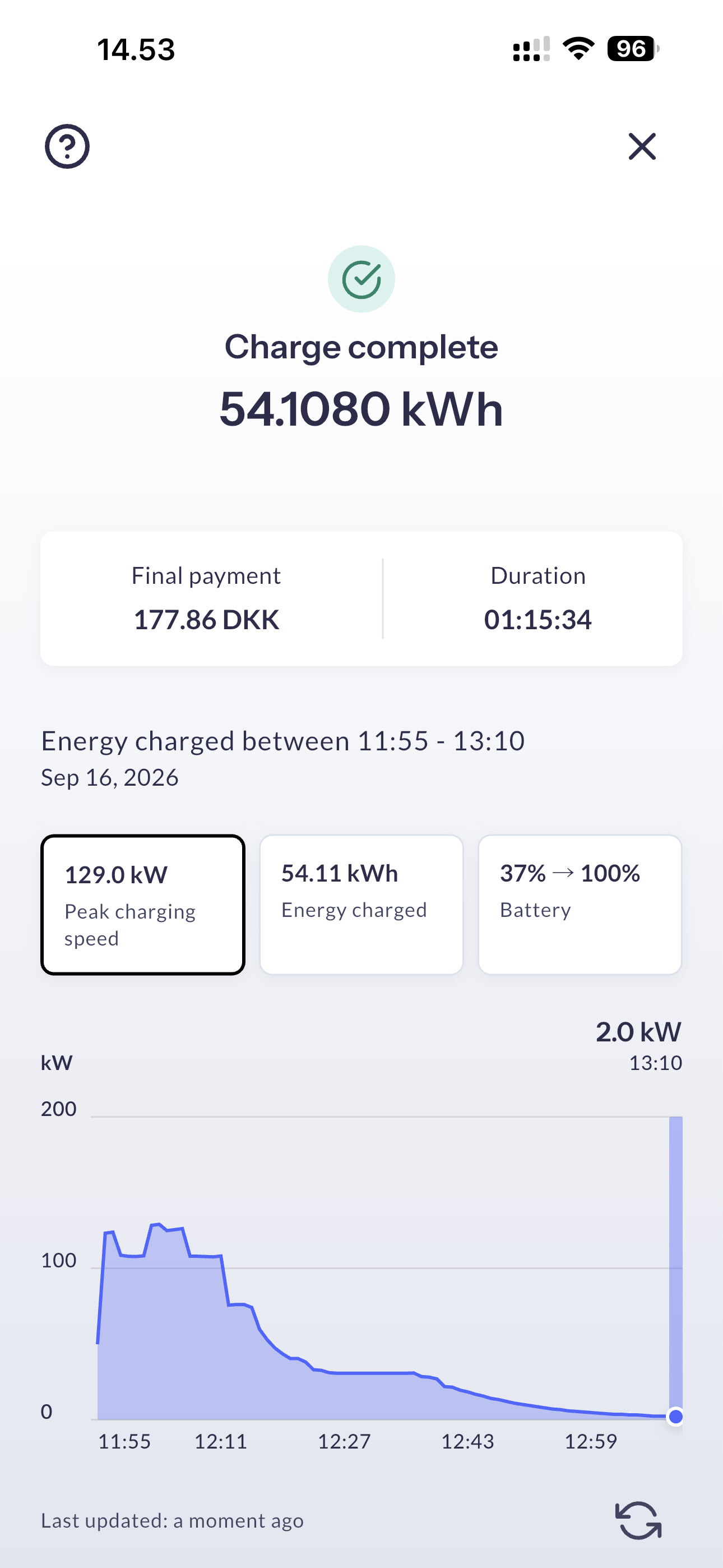
AI self-healing for charging stations
Let Monta's AI pick the recovery action when a charging station gets stuck.
Self-healing now comes with AI self-healing. When a charging station is stuck in a faulted or unavailable state, Monta's AI looks at its status, recent OCPP events, configuration and recovery history, and recommends what to do. Monta's system then decides whether to act. Soft reset or hard reset the charging station. Ask the charging station to resend its status. It acts only when the AI is confident in the recommendation. No resets during an active charging session, and at most 3 resets in 7 days. Other recommendations are saved for you to review. Nothing is sent to the station. See every decision. The recovery history shows what triggered each check, the action, whether it ran, and the AI's summary. Open a row to see the evidence and how the AI scored each action. Where to find it: open an EVSE, go to Integration, then Self-heal, and choose AI. Changing the mode needs update permission. Rule-based stays the default. You can switch a charging station to AI self-healing, or back, at any time.
Read moreReimburse employees for charging at their condo's shared EVSEs
Accounts can now pay employees back for charging at the condo where they live, at a flat rate per kWh or the full price.
Accounts can now reimburse employees who charge at the shared EVSEs of the condo (housing association) where they live. Until now, reimbursement only covered EVSEs the employee owns. The employer sets each employee to a flat rate per kWh or the full price, without managing the condo's EVSEs or seeing their prices. A flat rate pays the rate for each kWh, VAT included, but never more than the employee paid for the energy. The fees set on the EVSE's price, such as start, per-minute, charging and idle fees, aren't covered. Full price pays everything the employee paid, fees included. Employers increasingly pay for their employees' home charging, and many employees live in apartment buildings where the EVSEs belong to the condo, not to them. Your customers can now cover that charging too, with the same monthly approval as home reimbursement. Each party sees only its own part: the employer sees its employees, rates and payouts, never who owns the EVSEs or what they cost. Operators whose accounts reimburse employees for charging, and operators running EVSEs for condos and housing associations. The condo's account turns condo reimbursement on for an EVSE, on its Pricing & access tab, or for a whole location, in the location's Configuration settings. Only EVSEs on professional accounts qualify. The employer invites the employee from the account's Reimbursements tab with Invite employee, ticks Condo charging, with or without Home charging, and picks Flat rate per kWh or Full price. For an existing member, the Condo reimbursement card on the member's Reimbursement tab does the same. The employee accepts the invitation and links the EVSE or location in the Monta app, under Me → Condominium reimbursement. The employee pays each charge with their personal wallet, a card, Apple Pay or Google Pay. A charge paid from the condo's or a company account's wallet isn't reimbursed. The app shows the reimbursement terms when the employee starts a charge, while they charge and on the charge summary. After the month ends, the employer approves the payout under Reimbursements → Monthly payouts, and the reimbursement moves into the employee's personal wallet. Condo reimbursement is available in early access. Operators on the Early access track have it on, and any operator can turn it on under Admin → Release channel. Employees see the reimbursement while charging and on the charge summary from version 2.101.0 of the mobile APP.
Read moreBank account changes on professional accounts now need a second approval
Another owner or admin must approve a new payout bank account before payouts go to it, and a help icon explains the rules.
A change to the payout bank account of a professional account in Monta Hub now needs approval from another owner or admin of that account before payouts go to the new account. One login can no longer redirect an account's payouts on its own. An owner or admin clicks Edit on the bank account and enters the new details under Change bank account. Payouts keep going to the current account while the change waits. Every owner and admin of the account gets a Hub message and an email that says who asked, with the current and new account masked to their last four characters. Another owner or admin approves or rejects the change. You can't approve your own change, but you can withdraw it until it's decided. Approving switches payouts to the new account. Rejecting keeps them on the current one. Everyone is told either way. If you're the only owner or admin of the account, the change applies right away, after the same alert. Only one change can wait at a time. Edit stays visible but disabled while it waits, and Delete is disabled, so the approval can't be skipped. Each tells you why. The request also shows on your operator's Change requests page, linked to the account. The account's own owners and admins decide it. Personal and private accounts are unchanged and still edit their bank account directly, and adding the first bank account to an account is direct too. A ? beside the bank account heading now lists these rules. You find it on a professional account's payment settings, and on your operator profile, where another operator admin approves changes to the operator's own payout account. A payout account is a target for fraud. Needing a second person stops a single login from redirecting payouts without anyone noticing, and everyone who can approve hears about every change. Operators with professional accounts, such as companies and fleets that receive payouts, and the owners and admins of those accounts. Professional account: Account, Payment, Payment settings, on the bank account card. Operator: Operator profile, General, Bank accounts.
Read more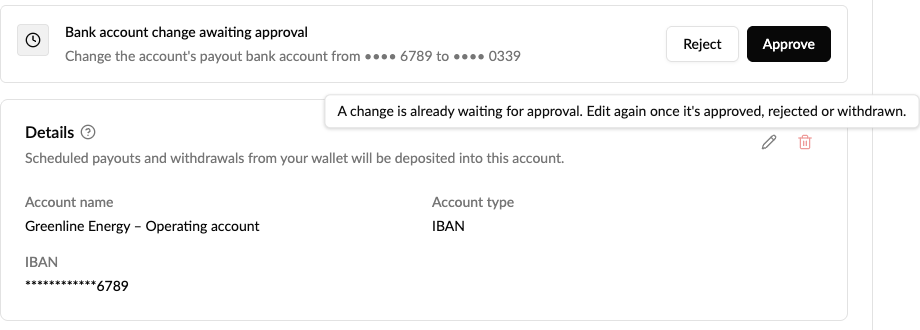
Monta Control’s charging station tools are now in Hub
Open a charging station’s new Control tab for its OCPP logs, configuration, firmware and commands, without switching to Monta Control.
The charging station page in Monta Hub has a new Control tab with the features you use on a station in Monta Control: Overview: live connection, status, device, network and connectors, refreshed every few seconds. Charges: the station’s charge sessions, with ID tags and meter readings. Open one to pause, resume or stop it. Logs: the station’s OCPP logs, with a Live mode that shows new logs as they arrive. OCPP configuration: read the keys from the station, change them, or keep a value as an override. Firmware: the version it runs, its update history, and installing an approved or released version. Self-heal, Certificates and Version history, the last exportable as CSV. An Actions menu sends station commands: restart, change availability, trigger a message, get diagnostics, get the composite schedule, clear charging profiles, data transfer, set a network profile, change the model, cable lock, sync state, disconnect, and manage the station’s password and WS connection. The page header also flags a rejected connection, a running or available firmware update, and an unknown brand or model. Links that used to open a station in Monta Control, such as Open in Control on an EVSE, now open this tab. Why it matters You can troubleshoot and manage a charging station in Hub, next to its EVSEs and charge sessions, without switching to Monta Control. Who can use it Anyone with access to the station’s charger integration can see the tab: operator admins, managers and supporters, account owners, and account admins allowed to configure charge points. Commands and changes need edit access, which operator supporters don’t have.
Read morePayter screen templates: word what your payment terminals say
Choose the texts your Payter Apollo terminals show, in each language, and which terminals use them.
We're working on screen templates for Payter Apollo payment terminals in Monta Hub. You'll soon be able to change the texts your terminals show to drivers, per language, and choose which of your terminals use them. A template will cover: The screen texts, such as titles, price messages and buttons. The payment messages, such as card approved, receipt, card reading stopped and payment cancelled. Whether terminals start on a language selector that lists the template's languages. Showing the price per kWh and the card hold on the payment screen instead of the reserved amount. The editor will show the terminal screens of the driver flow side by side, with sample values, so you edit each text where drivers see it. You decide how your terminals talk to drivers, in the languages they use, without asking Monta to change them. Any text you leave unchanged keeps Monta's default wording, so later improvements to the defaults still reach your terminals. Texts that show a price or an amount must keep it, and a text that is too long is flagged before you can save. Operators with Payter Apollo payment terminals connected to Monta. You'll choose which of your terminals use each template.
Read more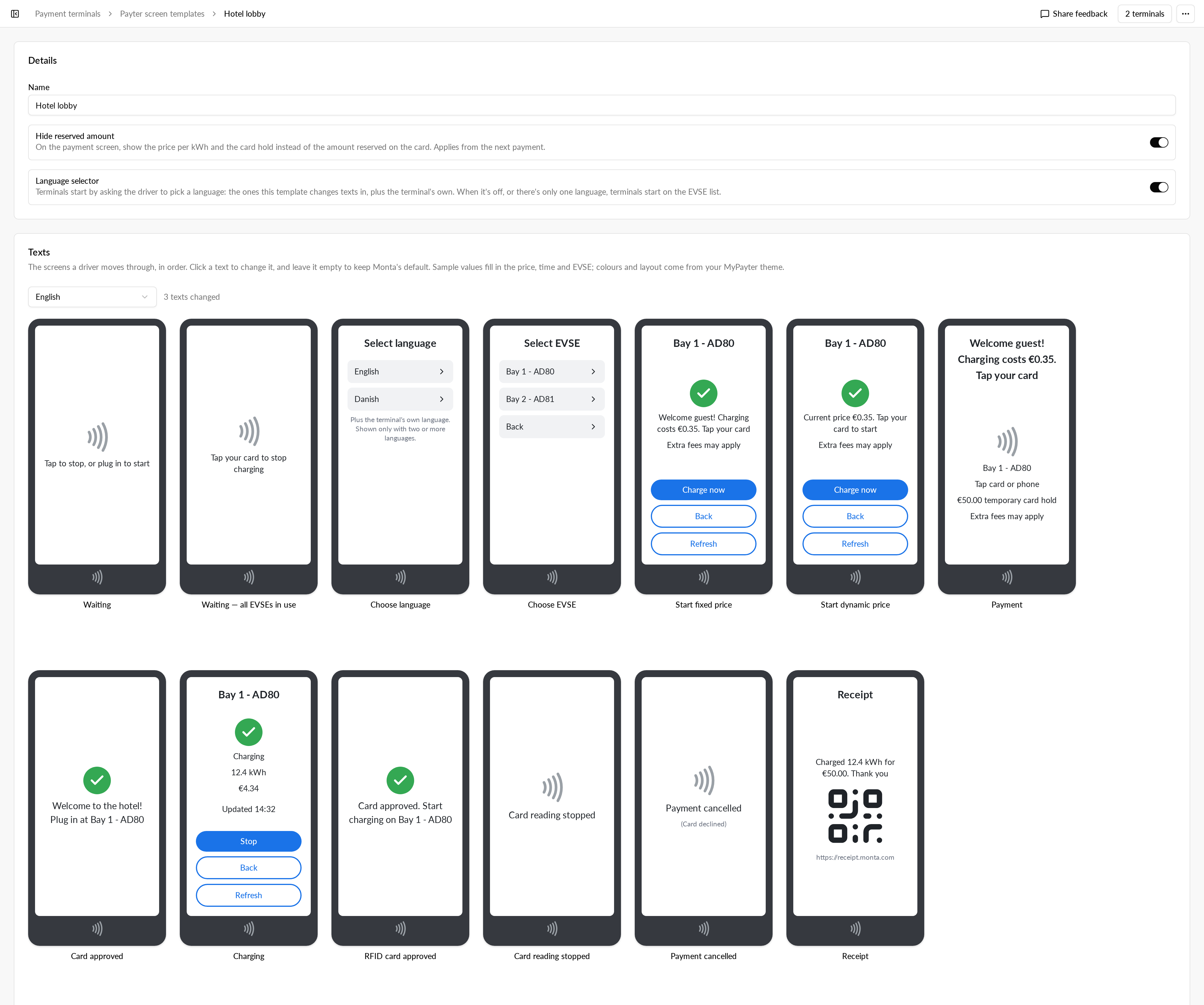
Credit notes for e-invoices are handled automatically
Refunds and corrections for earlier periods are now automatically issued as credit notes in the billing run.
When a sale is refunded after the period it was invoiced in, the monthly e-invoice run now drafts a credit note for the refund. The credit note is sent as a negative amount and carries the date of the original invoice. Refunds that fall outside the original invoice period are handled in the e-invoice run, and each credit note is matched to the e-invoice the sale was billed on. Operators who send e-invoices to their customers.
Read moreE-invoices in Monta Hub and the Partner API, now live in France
French operators can now see, open and download every e-invoice Monta issues on their behalf, in Hub and through the Partner API.
The E-invoices tab in Finance → E-documents is now live. It sits next to the E-reports tab and lists the e-invoices Monta issues on your behalf as soon as they are sent, newest first. For each e-invoice you can see: The invoice number and format The counterparty and their SIREN The issue date and net amount The transmission status Open an e-invoice to see both parties, the lines with their VAT rate, a VAT breakdown per rate and the compliance details. You can download a single e-invoice as PDF (Factur-X) or XML, or select several and download them together as a ZIP. The list shows e-invoices from your operator, its sub-operators and the accounts underneath them. Switch between Your and All, or use the Issued by filter to narrow the list to a single account. The same e-invoices are also available through the Partner API. With the new e-invoices read scope, your integration can list a wallet's e-invoices and fetch each one with a link to download the document. Your finance team has every e-invoice sent in your name, and the figures behind it, in the same place as your e-reports. Teams that run their own accounting or ERP can pull the same documents through the API instead of downloading them by hand. Operators and businesses based in France. Access in Hub is governed by your finance permissions. Hub → Finance → E-documents → E-invoices. Read more about French e-invoicing.
Read moreImprovements: week 44 2026
Energy management: the General section of the energy "Setup" tab now uses one consistent layout. Studio: you can now clone dashboards with limited access, and the copy keeps the same access. Studio: every widget type now follows the time period set on it. Studio: operator dashboards now show revenue per account. Studio: you can now download invoice PDFs from Studio. Studio: AI dashboard drafts are now scoped, and you can save them and add to them. Studio: generated column labels now spell out RFID, CPO, OCPI and percent. Plans: the old plan editor is retired. What's new in Hub: posts now show headings, lists, the release stage and date, the same as on the public changelog. Templates: country and currency are now prefilled when you edit a template. Data exports: the shortcut buttons are now translated. Data exports: bookkeepers can now export (was blocked). Home: the Hub "Home" page now loads even when summaries are slow. Charges: a charge page now shows a loading state, not an error, while it loads. Messages: messages now label yesterday correctly on clock-change days. EVSEs: an EVSE's status is no longer overwritten by an older one. Add EVSE: the EVSE count and connector ids now accept 1 to 99, with the same limits everywhere. Charging stations: setting and resetting a charging station's password is now simpler. Accounts: email and phone can now be verified, the user detail page shows whether they are, and security notice emails can be undone. Accounts: search finds accounts by their external reference again. Accounts: re-accepting the terms now keeps marketing consent. Sub-operators: you can now rename a sub-operator. Price groups: sub-operators now see their main operator's tariff and market on a price group. Pricing: percentage offers now include the grid's time-of-day price. Pricing: price estimates now keep every kWh. Pricing: tariffs can become price lists again. Dynamic pricing: sessions now use the actual spot price once it is published, not the forecast. Receipts: California pricing receipts no longer show a stray bracket. Payments: Apple Pay and Google Pay payments are no longer cancelled while confirming. Payouts: manual withdrawals now need the account owner to pass the KYC identity check, on every path, not only the app. E-invoicing: French self-billed e-invoices now only go to receivers that accept them. Subscriptions: subscriptions now fall back to the driver's card. Subscriptions: a subscription paused when it is created now keeps its next renewal date. Reimbursement: the employee page now keeps the operator's reimbursement price group. Reimbursement: EVSEs you sponsor no longer disappear seconds after you add them. Reimbursement: you can now only sponsor EVSEs that bill in the account's currency. Energy management: topology tiles now show measured power, including for AC EVSEs that report meter readings (was allocated power). Energy management: you can now change an energy site's account and location. Energy management: setting up a Shelly meter is now easier. Energy management: EVSEs that can't load balance are now imported with load management off. Roaming: roaming partners now see the tariff they are billed by. Roaming: private roaming charges are now priced from their connector's tariff. Roaming: roaming time fees now wait for the free period to end. Roaming: roaming locations now show up after an operator is switched on. Roaming: roaming EVSEs are now filed under the right operator. Roaming: on a charge, the inbound roaming price is now labelled excluding VAT (was including VAT). Roaming: the parties help popover now links to the help center. Open data: the public open-data locations feed loads every page again. Helpdesk: tickets awaiting a release now stay open, and you can reopen a completed ticket for 14 days (was 7). Helpdesk: you can now ask Monta to switch on the AI Assistant from a Helpdesk form, and forms mark required fields up front. Helpdesk: parent operators can now link a sub-operator and its accounts, EVSEs and locations to a ticket. Monta app: drivers can now add a charge key by typing the number printed on it. Monta app: drivers now get the right EVSE suggested when they plug in. Monta app: the electricity costs screen now loads for saved grid tariffs. Monta app: inbox messages now show formatted text instead of markdown symbols. Monta app: adding a SaveEye home energy device again now pairs it again. Web charging: web charging now copes better with bad connections. Web charging: the payment page now checks the EVSE again just before payment. Web charging: web charge pages now show kWh with US precision. Charging: pay-first sessions now start up to 40 seconds faster. Firmware: Alfen charging stations can now update to the signed 2.7.0 firmware. RFID: RFID authorization logs are now readable. Monta API: you can now set custom join codes for many accounts at once, through the API or an import. Monta API: you can now set driver support visibility when you create a location, and a cost center when you add an account member. Monta API: a location's operator now follows its account. Monta API: you can now set or withdraw marketing consent. Monta API: account members now include the account type. Monta API: API calls that turn emails off now also cover subscription approvals, sponsored EVSEs and reimbursement emails. Monta API: the welcome email is now sent only once per user. Monta API: plans made public through the API now wait for Monta's review. Monta API: account freezes set through the API now stay on. Bank alerts: the message now names the operator and includes a next step. Hardware Portal: the "Logs" tab of a charging station now shows every log type, formatted, and exports to CSV. White label: you can now choose, per app, which sub-operator automatically created private accounts belong to.
Read moreOctober 2026
9 updatesGrid regions on locations and EVSEs
See which DSO zone and bidding area each location and EVSE sits in, and pick spot-price zones on a map.
Locations and EVSEs now record every grid region they sit in, such as the DSO zone and the bidding area, instead of only the bidding area. A new Regions card shows them, and a map shows the zones around the EVSE or location. You can also open a country map with every zone layer, switch between countries, and re-sync an EVSE's or location's regions from the map. The spot market map doubles as a zone picker: click a bidding area to select it as the spot-price zone. You can see which grid operator and price zone a site belongs to without looking it up elsewhere. Choosing a spot-price zone on a map is quicker than picking it from a list. Operators running energy-aware charging, spot-price tariffs or sites that depend on their grid operator. Open an EVSE or location and go to Settings, then General, to see the Regions card. Select the map to see the zones, or use Country map for every layer in a country. For spot prices, open Energy tariffs, then Spot market, and select Map to pick a zone. DSO zones are currently available for Denmark only. Each country shows only the region levels it has.
Read more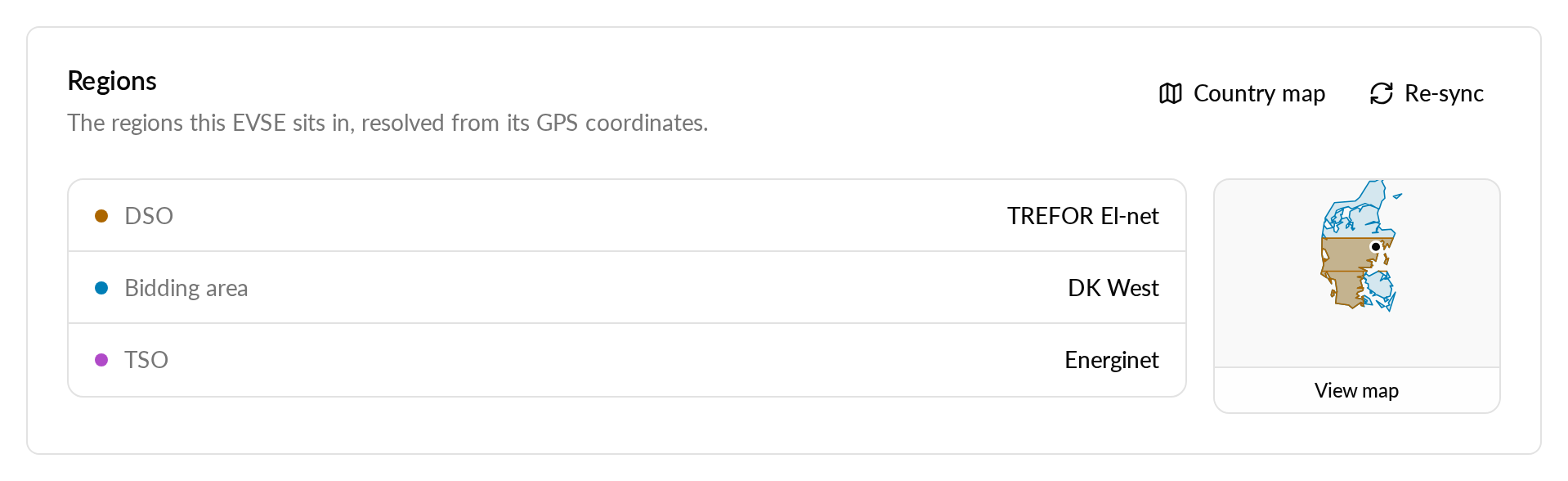
Viewing as: see an account page the way its people see it
Preview an account in Monta Hub as its owner, admins, members, a member group or one person, without signing in as them.
Operators can now preview an account page in Monta Hub as one of the account's own people: the account owner, an admin, a member, a member group or one specific person. The page then shows only the tabs and areas that person can see, and areas they can only read are read-only for you too. It is only a preview. You stay signed in as yourself, and nothing on the account changes. As an operator, you see more of an account than its own people do, because their view depends on the account's feature set and their role. Viewing as lets you check a feature set before you roll it out, or see the same page as someone on the account who says they cannot find something. Operators who manage accounts for their customers. Open the account in Monta Hub. At the top right, next to "Share feedback", select "Viewing as". Pick who you want to see the page as. Each option says how it differs from your view: what they have no access to, what is read-only for them and what is operator only. To go back to your own view, open "Viewing as" and select "Operator". The "Viewing as" button only appears when there is something to preview: when the account's feature set hides something from its own people, or when its roles have different access. How do I see an account the way its people see it (Viewing as)?
Read more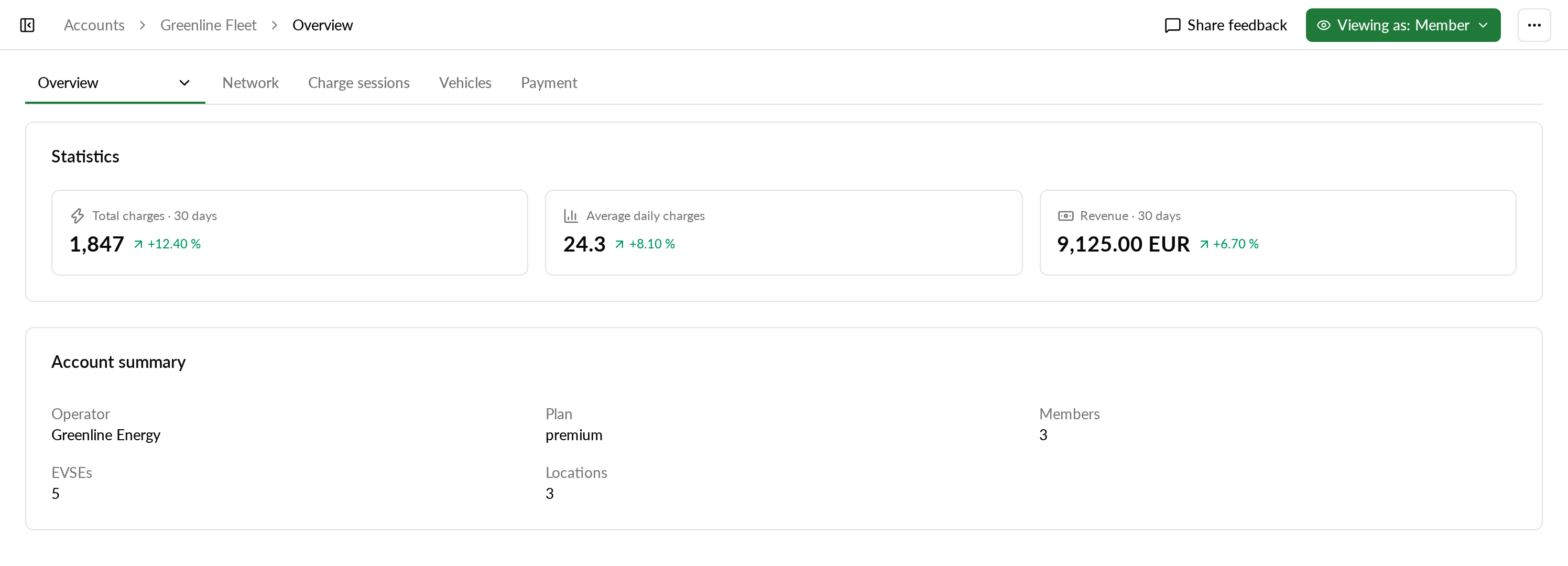
Hub Lists are now in the Monta Data Warehouse
We’ve added your Hub Lists to the Monta Data Warehouse. This allows your teams to use the groups you build in Hub, such as locations grouped by product, in internal analytical tools. What’s new operator_lists has one row per list, with its name, description, type, and created, updated and deleted dates. operator_list_items has one row per member, showing which site, charge point, team, user, charge key or vehicle is on which list. For a list of locations, operator_list_items.entity_id joins to charge_point_sites.id. Why it matters Your reports can follow the same groups your teams already maintain in Hub. Good to know A deleted list stays in the table with deleted_at set. Filter on deleted_at is null to see only the lists in use. The warehouse refreshes three times a day, at about 04:00, 12:00 and 20:00 Copenhagen time. A change in Hub shows up after the next refresh. Availability The tables are available now in your partner schema in the Monta Data Warehouse.
Read moreEqual share sub-prioritisation for Energy Management
Choose Equal share as the sub-priority on a site, and new sites now start with it.
The advanced settings of a site in Hub now offer "Equal share" as a sub-priority option for Energy Management. New sites now default to Equal share. The Partner API accepts EQUAL_SHARE as a sub-prioritization value. The NONE value is deprecated in favour of EQUAL_SHARE. Sites previously defaulted to priority arrival time. Equal share gives you another way to split power between charges on a site. Note that an explicit priority set by a Charge Intent trumps any sub-priority and makes sure higher-priority charges get more power regardless of arrival time, SoC, or kWh charged. Operators who use Energy Management on their sites, and partners who set sub-prioritization through the Partner API. In the advanced settings of an Energy Management site in Hub.
Read moreBulk edit and delete EVSEs on the energy location setup
Change settings on, or remove, many EVSEs at once from the EVSEs tab.
On the EVSEs tab of an energy location setup, you can now edit or delete several EVSEs in one step, next to the existing Move to node action. Bulk edit opens one dialog where you can change the phase setup, the current and power limits, allow zero current or power, and disable load management. Bulk delete removes the selected EVSEs from the location's load balancing, after you confirm the number of EVSEs. The header checkbox selects only the current page. The bulk bar now also lets you select every EVSE on every page. Setting up or changing a location with many EVSEs no longer means opening each one. Each field in bulk edit has its own tick-box, and only ticked fields are changed, so every EVSE keeps its own value for the rest. The save is blocked if a change would leave an EVSE with a minimum above its maximum, or load management on without a maximum power. Operators who manage energy and load balancing across locations with many EVSEs. Open Energy management, then the location, then the Setup tab and EVSEs. Select the EVSEs you want to change, or use the bulk bar to select all of them across pages. Choose Bulk edit or Bulk delete from the bulk bar.
Read moreGive account members a name, even if their Monta profile has none
Set a first and last name per account member, on invite, per member or in bulk, so lists, exports and the Fleet cost overview show real names instead of User numbers.
Account admins can now give account members a first and last name in Monta Hub. Until now, members who never filled in their Monta profile showed up as User #12345 in the members list, in exports and on the Fleet cost overview, so finance had to work out who was who. The name belongs to the membership of this account. The person's own Monta profile and their other accounts aren't changed. If the person has a name in their Monta profile, that name is shown; the name you set fills the gap when they don't. When you invite someone: optional First name and Last name fields, shown when the person doesn't have a name yet. On a member: open the member and edit the names under General settings. For many members at once: in the Members list, select members and choose Edit names. In a bulk invite: add the optional firstName and lastName columns to your file. The account's members list. Data exports: Member Name in Team Members, and User Name in charges and transactions, including when you group by driver. The driver tiles on the Fleet cost overview. Public share links of dashboards keep showing User #12345, so names never leave your organisation. To clear a name, open the member and empty the field. Bulk edit only changes names you fill in. Companies and fleets that onboard employees who never complete their Monta profile, and anyone reconciling charging costs per employee.
Read more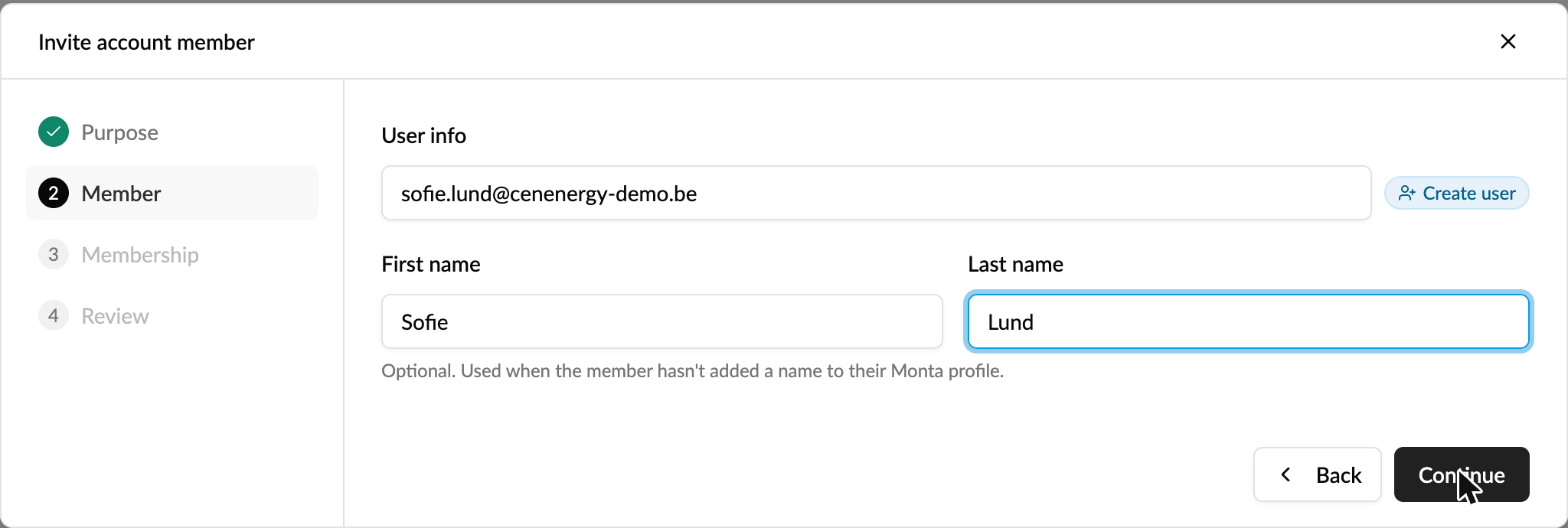
Monta fees shown in your own currency on a charge's transactions
Every amount in a charge's Transactions section now shows in your operator's currency, with the original amount beneath.
Until now, the Transactions section on a charge's page in Hub could mix currencies. A Monta fee, for example, could show in Danish kroner while the rest of the charge was in your currency. Now every amount there (tax, sub amount and amount due) shows in your operator's currency. Where a transaction settled in another currency, the amount in your currency comes first and the original amount sits beneath it in smaller, muted text. Opening a transaction still shows the exact exchange rate. Your existing setup changes automatically. Nothing needs to be set up. It affects operators whose charges include transactions in a currency other than their own. You can compare fees and amounts on a charge at a glance and check that the right fees were applied, without converting between currencies yourself.
Read moreImmediate access when inviting a member into a member group
The "Immediate access" option is now available together with a member group.
Until now, choosing a member group when you invited someone to an account in Hub hid the "Immediate access" toggle, so the person always had to accept an invite. Now the "Immediate access" toggle stays available when a member group is selected, so the member is added straight away without accepting an invite. Your existing setup stays as it is. Invites you send without immediate access still work as before. It affects operators and account admins who invite members into member groups in Hub. You no longer need to invite with "No member group" and then assign the member group afterwards. That is one step fewer when you add people, train new staff or document the process. Invite a member to an account in Hub. Select a member group. Turn on "Immediate access" and send the invite.
Read moreSign in to Hub with a code sent by email
Choose "email me a code" on the Hub login page to sign in with a 6-digit code.
The Hub login page now has an "Email me a code" option. Instead of typing a password, you can ask for a one-time code by email and enter it to sign in. This also works on white-label Hub. You and your teams have another way to sign in that does not rely on a password. Open the Hub login page and enter your email. Select "Email me a code". Enter the code from the email.
Read more