
Improvement
Bank account changes on professional accounts now need a second approval
Another owner or admin must approve a new payout bank account before payouts go to it, and a help icon explains the rules.
- Stage
- Early access
- Available to all customers
- To be confirmed
- Product
- Monta Hub
- Posted
What's new
A change to the payout bank account of a professional account in Monta Hub now needs approval from another owner or admin of that account before payouts go to the new account. One login can no longer redirect an account's payouts on its own.
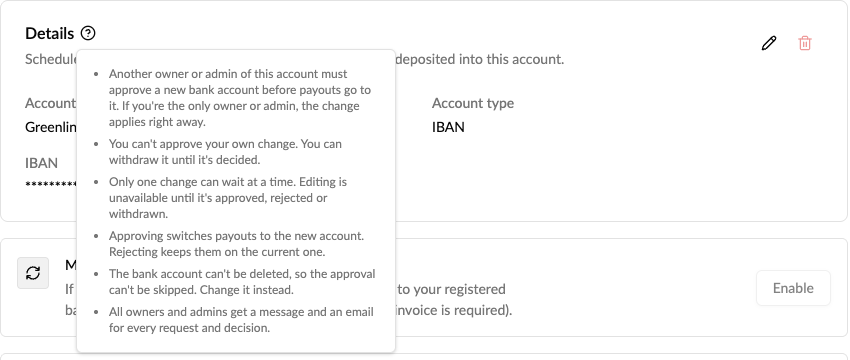
- An owner or admin clicks Edit on the bank account and enters the new details under Change bank account. Payouts keep going to the current account while the change waits.
- Every owner and admin of the account gets a Hub message and an email that says who asked, with the current and new account masked to their last four characters.
- Another owner or admin approves or rejects the change. You can't approve your own change, but you can withdraw it until it's decided.
- Approving switches payouts to the new account. Rejecting keeps them on the current one. Everyone is told either way.
- If you're the only owner or admin of the account, the change applies right away, after the same alert.
- Only one change can wait at a time. Edit stays visible but disabled while it waits, and Delete is disabled, so the approval can't be skipped. Each tells you why.
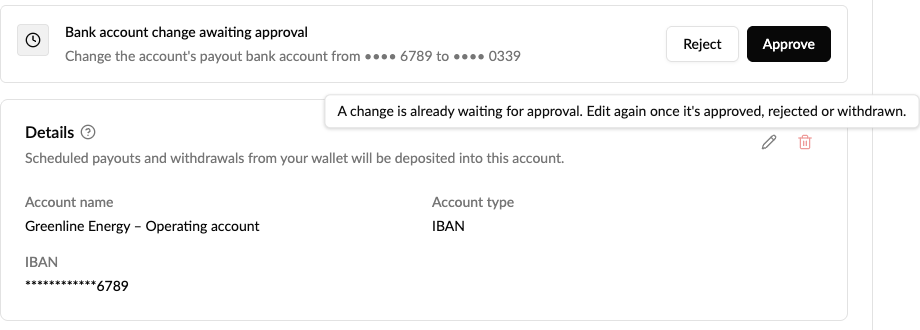
The request also shows on your operator's Change requests page, linked to the account. The account's own owners and admins decide it. Personal and private accounts are unchanged and still edit their bank account directly, and adding the first bank account to an account is direct too.
The rules, explained where you change the account
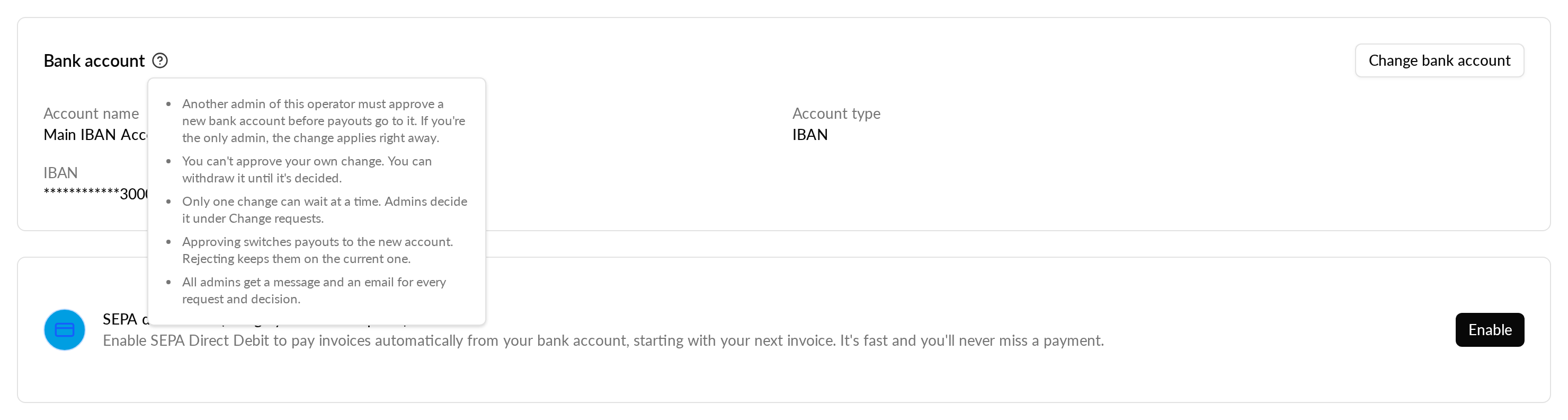
A ? beside the bank account heading now lists these rules. You find it on a professional account's payment settings, and on your operator profile, where another operator admin approves changes to the operator's own payout account.
Why it matters
A payout account is a target for fraud. Needing a second person stops a single login from redirecting payouts without anyone noticing, and everyone who can approve hears about every change.
Who it's relevant for
Operators with professional accounts, such as companies and fleets that receive payouts, and the owners and admins of those accounts.
Where to find it
Professional account: Account, Payment, Payment settings, on the bank account card. Operator: Operator profile, General, Bank accounts.