
New feature
Two-factor sign-in with an authenticator app, and recovery codes
Add a code from an authenticator app to your Hub sign-in, and keep one-time recovery codes for when you lose your phone.
- Stage
- Live
- Released
- Product
- Monta Hub
- Posted
What's new
Everyone who signs in to Monta Hub with a password can now turn on two-factor authentication (2FA) from their Profile page. After the password, Hub asks for a six-digit code from an authenticator app, such as Google Authenticator, 1Password or Authy.
With 2FA on, you can also create 12 one-time recovery codes. If you lose your phone, you sign in with a recovery code instead of the authenticator code.
Why it matters
A leaked password is no longer enough to get into your account. This matters most for admins who can change pricing, payouts and access for your network.
If you have saved your recovery codes, you can get back in after losing your phone without asking Monta support to remove 2FA.
Who it's relevant for
Every Hub user who signs in with an email and password. Accounts that sign in through single sign-on (SSO), Google, Apple or Microsoft see their 2FA status, but their sign-in provider handles any second step.
How to use it
- Open your Profile page in Hub and select "Enable 2FA" in the "Two-factor authentication (2FA)" row.
- Scan the QR code with your authenticator app, enter the six-digit code it shows and select "Verify and enable".
- In the "Recovery codes" row, select "Create codes". Copy or download your 12 codes, then select "Confirm you've saved your codes".
- If you sign in without your phone, select "Use a recovery code instead" at the code step.
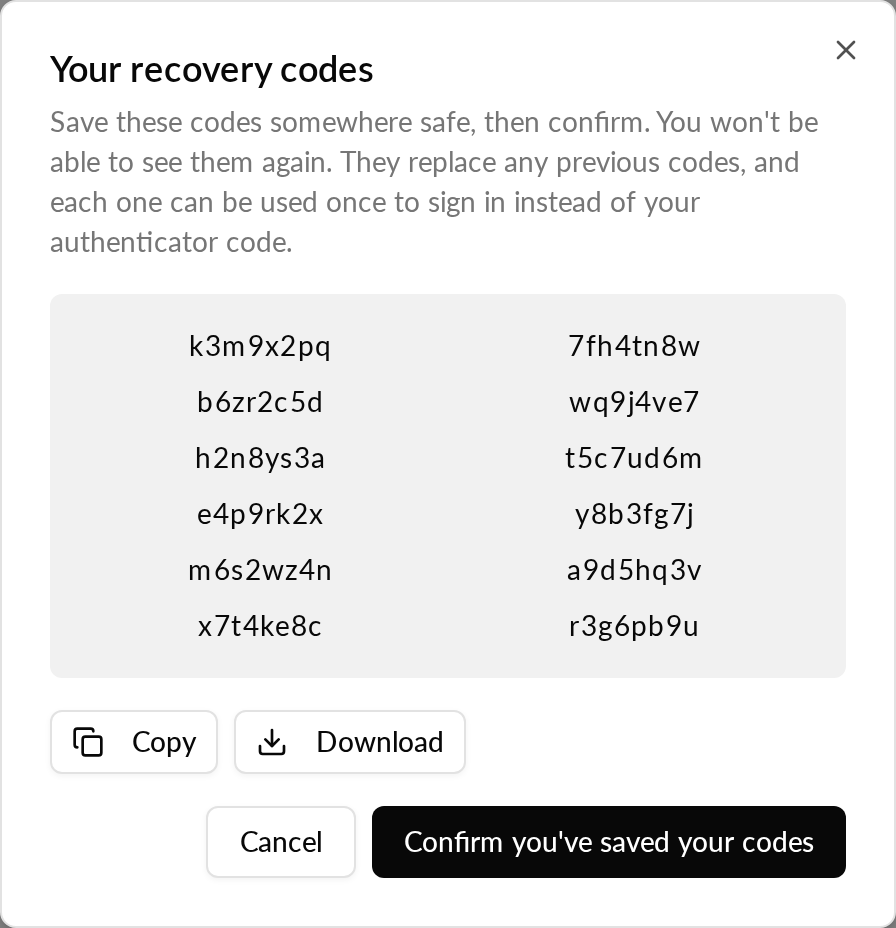
Each recovery code works once. Hub shows your codes only when you create them. If you lose them, select "Create new codes" to replace all of them. Turning 2FA off deletes your recovery codes too.