
New feature
New account Invite codes
Run several invite codes per account with different configurations
- Stage
- Early access
- Available to all customers
- To be confirmed
- Product
- Monta Hub
- Posted
What's new
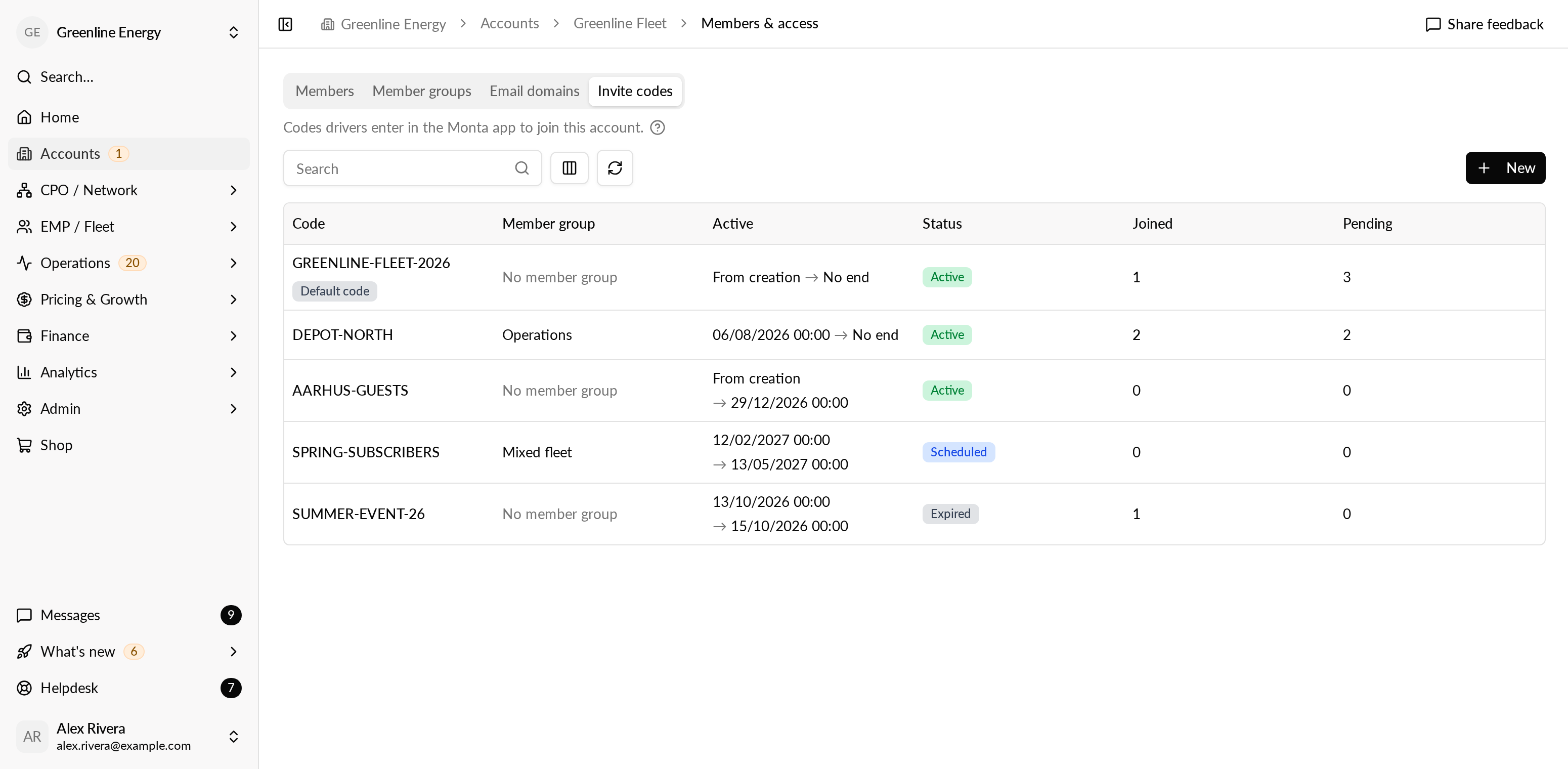
An account can now have several invite codes instead of one. Each invite code can put the drivers who join with it in a member group you choose, so they get that group's price group, member fee and permissions. A code can also have a start and an end date, and its own auto accept setting. You find them under Members & access, on the new "Invite codes" tab.
For each code you see its status (Scheduled, Active or Expired), how many drivers joined with it and how many join requests are waiting. "Joined" opens the members list filtered to the people who joined with that code.
Why it matters
If you sell driver subscriptions as a member group with a member fee, drivers can now sign up with a code instead of an admin adding each one by hand. You can also run a code per campaign, event, location or partner, switch it on and off by date, and see which code brought each member in.
Who it's relevant for
Account admins who share a code with drivers, and operators who sell subscriptions or run campaigns through member groups.
How to use it
- Open the account and go to Members & access, then "Invite codes".
- Select "New" and enter the code drivers will type in the Monta app.
- Pick a member group, and optionally set when the code starts and ends.
- Choose whether join requests with this code are accepted automatically, then share the code with your drivers.
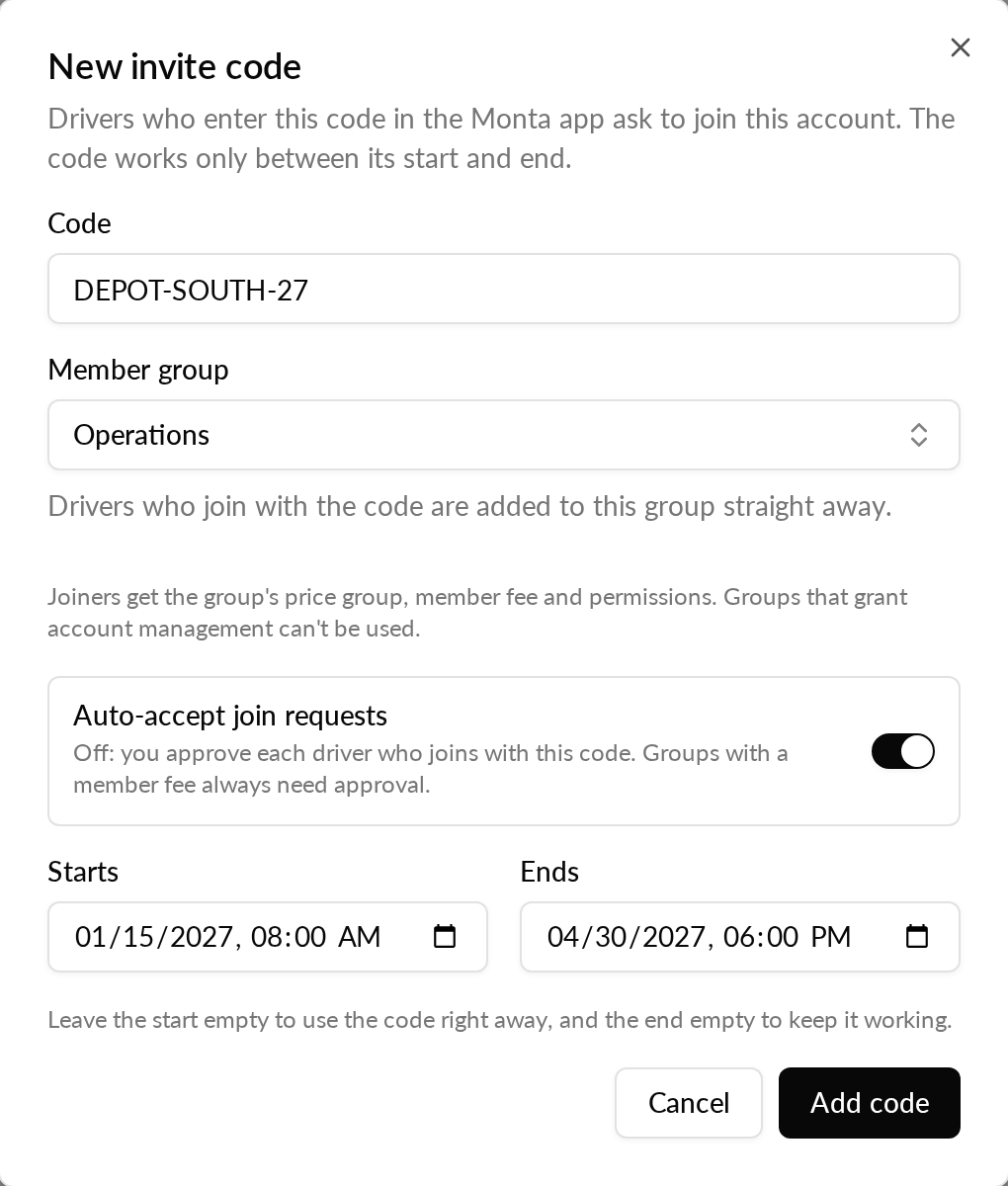
A join request for a member group with a member fee always waits for an admin to accept it, even with auto accept on. Member groups that grant account management, such as the admin role, can't be used on an invite code. A code can't be changed once created: to use a different code, add a new one.
Your existing invite code
Your account's current invite code keeps working as before. To give it a member group and dates, select "Upgrade" on it, on the "Invite codes" tab or under Settings, Invite settings. Drivers keep using the same code. After the upgrade, auto accept is set per invite code, and deleting or expiring the code stops it. The upgrade can't be undone.
Availability
Invite codes are available in early access in Monta Hub.