
New feature
Location layout: arrange your charge points on a site plan
Place each EVSE on a schematic grid or satellite map so drivers can find an open stall
- Stage
- Early access
- Available to all customers
- To be confirmed
- Product
- Monta Hub
- Posted
What's new
Location layout lets you arrange a site's charge points on a visual plan, so a driver can see at a glance where each stall sits and which one is free. You build it once in Monta Hub, on the location's Layout tab.
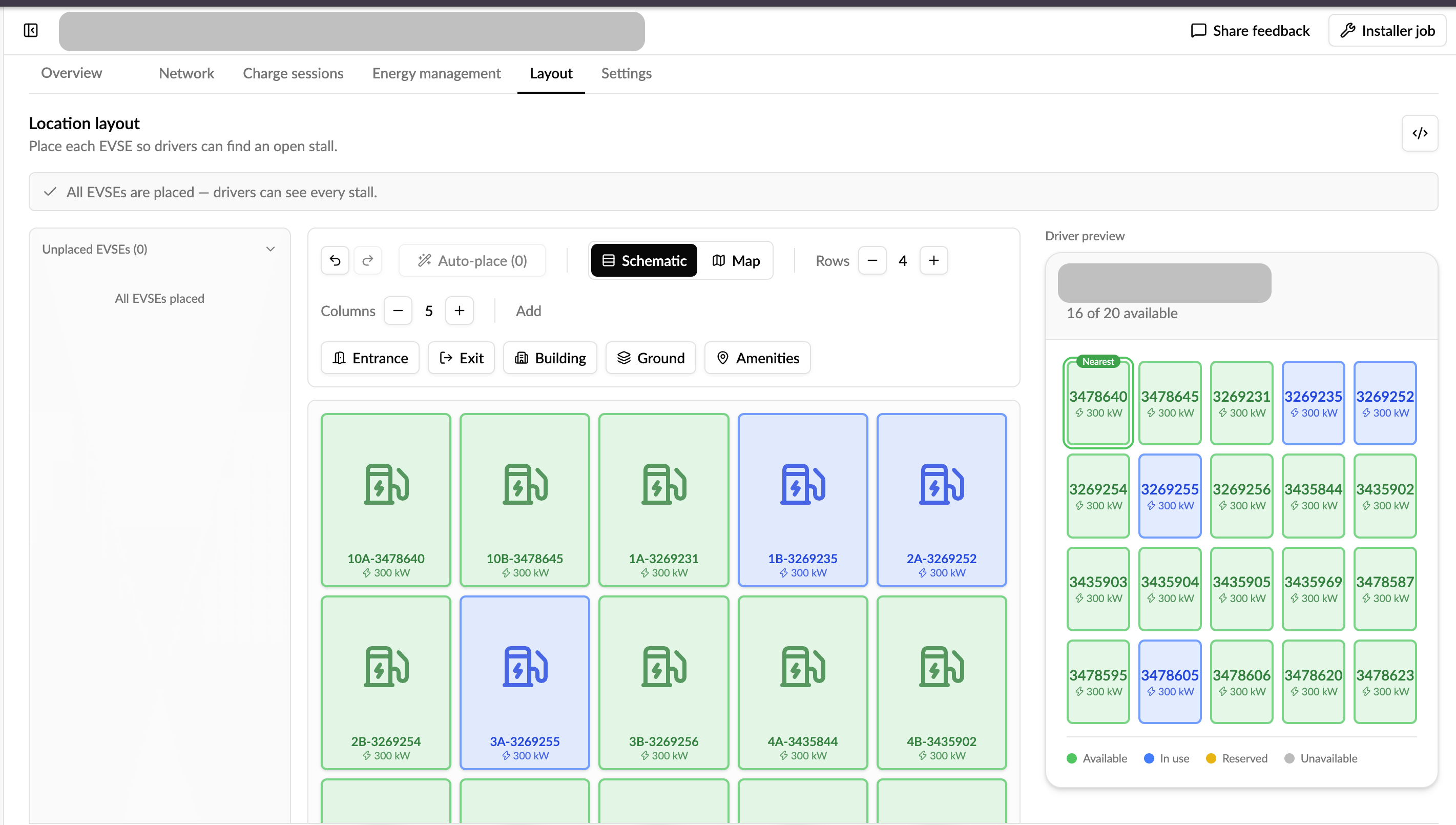
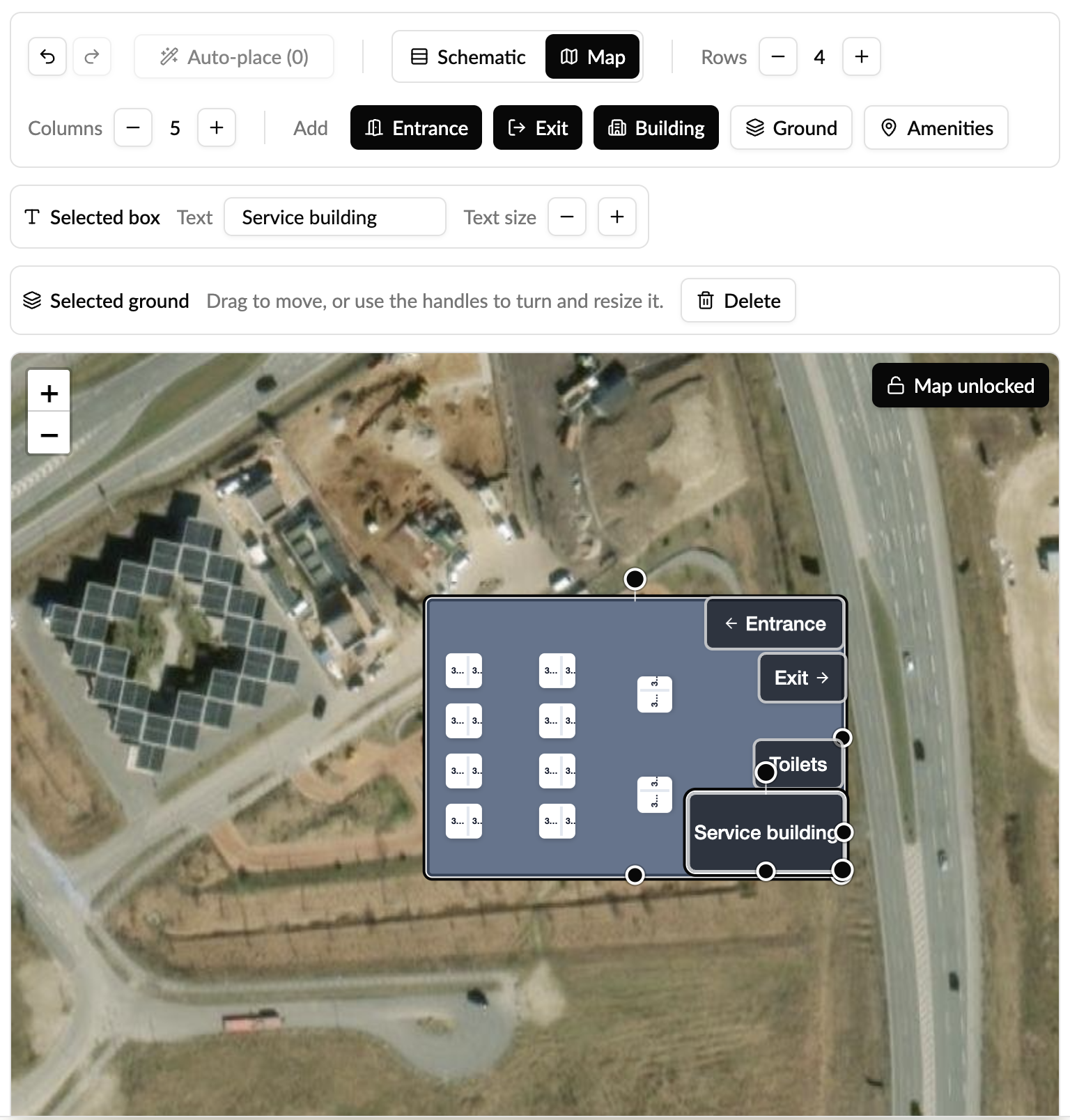
Two backdrops are available: a schematic grid for a clean diagram, or a satellite map where stalls are pinned to real coordinates. Alongside the stalls you can drop orientation markers that don't charge — entrance, exit, building, ground areas and amenities — so the plan matches what a driver actually sees on arrival. Stalls and markers can be resized and rotated, and a station's EVSEs can be grouped and moved as one unit.
A driver preview sits next to the editor and shows live availability — which stalls are available, in use, reserved or unavailable, and which is nearest — so you can check the plan reads correctly before you publish it.
Why it matters
On a large site, a driver arriving at a location has no way to tell which stall is free without driving the rows. A layout turns the site into something they can read at a glance, and it gives your team an accurate picture of where each EVSE physically sits rather than just a list of IDs.
Who it's relevant for
Operators running multi-stall sites, especially larger locations where finding an open stall is not obvious from the entrance.
How to use it
-
In Monta Hub, open the location and go to the Layout tab.
-
Pick a backdrop: schematic grid or map.
-
Drag your EVSEs onto the plan and position them; group a station's EVSEs where relevant.
-
Add any reference markers — entrance, exit, building, amenities.
-
Save, then use the driver preview to check what drivers will see.
If you add or remove EVSEs later, the layout reconciles automatically: new EVSEs appear as unplaced so you can drop them in, and removed ones fall away.
Availability
Available now in Monta Hub. In this first edition the layout is not shown in the Monta mobile app yet — you build and publish it in Hub, and drivers view it through the shareable web preview. Bringing the layout into the mobile app is planned for a later release.
Where to find it
Hub → CPO/Network → Locations → open a location → Layout