Improvement
Set an EVSE's own coordinates while it stays in its location
Pin each EVSE where it physically stands without taking it out of its location.
- Stage
- Live
- Product
- Monta Hub
- Posted
What changed
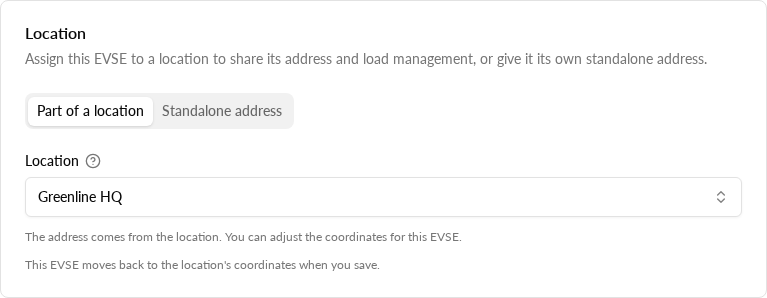
Until now, the only way to give an EVSE its own coordinates in Hub was to choose "Standalone address", which took the EVSE out of its location. Editing a location's address or coordinates also moved every EVSE in it back to the location's coordinates.
Now the Location card under "Part of a location" has a Coordinates field for the EVSE. You can move its pin and the EVSE stays in its location, with the location's address. A "Use the location's coordinates" button puts the pin back on the location's.
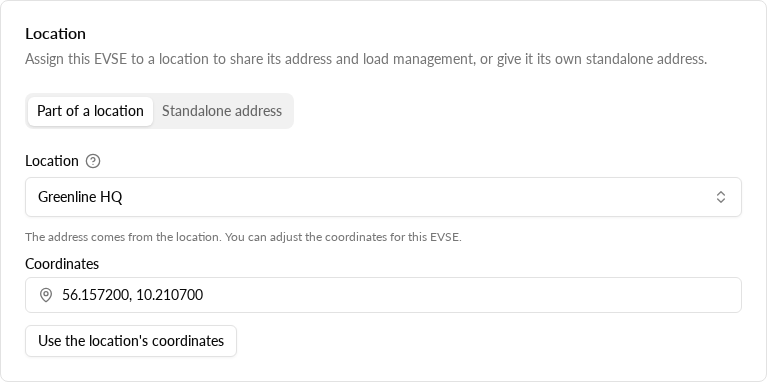
Your existing setup stays as it is. EVSEs that already have their own coordinates keep them, and editing a location's address or coordinates now only moves the EVSEs that were on the location's previous coordinates. All EVSEs in the location still take its new street address.
Automatic grouping no longer moves an EVSE out of a location you created because its own coordinates are more than 25 metres from the location's.
Why it matters
Each EVSE can be found on maps where it actually stands, and you can report exact positions per EVSE where regulators ask for them. Your EVSEs stay grouped in their location for load management, bulk firmware updates and reports.
Roaming partners receive each EVSE's own coordinates on the EVSE, and the location's coordinates on the location.
Who it's relevant for
Operators with locations where EVSEs stand apart from each other, such as large car parks or sites spread over several areas.
How to use it
- Open an EVSE and go to Settings, then General.
- In the Location card, keep "Part of a location" selected.
- Enter or pick the EVSE's coordinates and save.
- To go back to the location's coordinates, click "Use the location's coordinates" and save.