
All updates
Pull your own data, and find users from anywhere in Hub
- Stage
- Live
- Released
- Product
- Monta Hub
- Posted
What's New
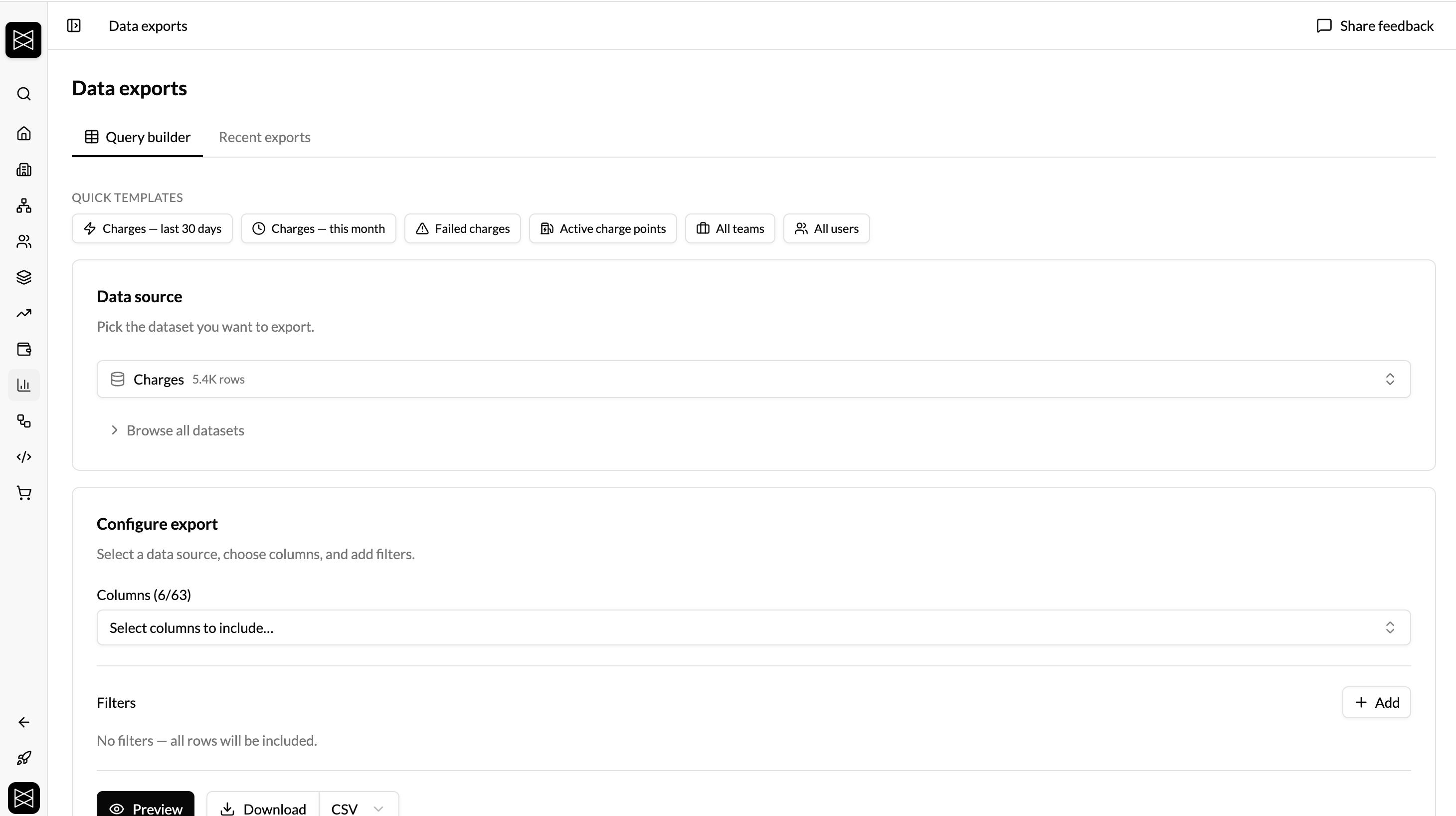
Data Exports — one place for self-serve data
We're introducing a centralised Data Exports tool in Hub beta, replacing the scattered per-page CSV buttons.
- Pick a dataset, choose columns, apply type-aware filters, preview the first 50 rows, and download as CSV or Excel (.xlsx). Up to 10 million rows per export.
- 26 datasets across charges, charge points and sites, users, teams, team members, vehicles, ratings, price groups, deeplinks, wallets and transactions, and the full v2 invoice and e-invoice stack (invoice lines, documents, payments, periods, credit notes, corrections, statements, self-billing lines, payment instructions, and e-invoice submissions).
- Team-scoped exports: team detail pages now have a Data Exports button in the action bar that deep-links straight into a team-scoped view. Team admins and owners can export within their team.
- The active dataset, columns, and filters are encoded in the URL, so a bookmarked or shared URL is effectively a saved query. Query Templates give you one-click presets for common pulls.
- Recent Exports lists your last 20 jobs with status, row count, file size, applied filters, who ran it, and timestamp. Re-download links stay valid for 24 hours.
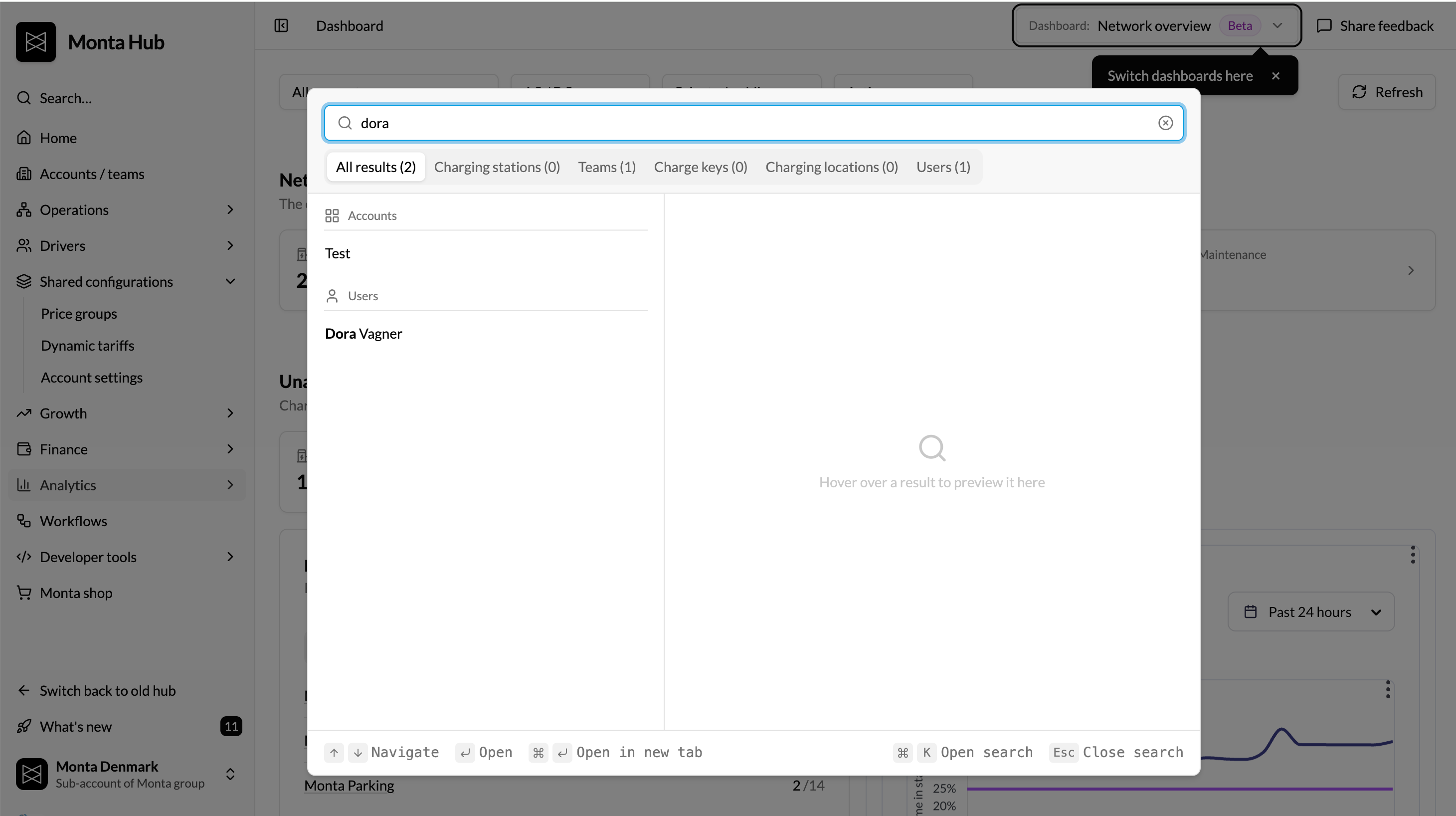
Global Search now finds Users — and a new Accounts tab on the user profile
Global search (Cmd/Ctrl + K) now returns Users alongside charge points, teams, charge keys, and sites. It matches on first name, last name, email, and phone, and takes you straight to the user's profile.
"Users" here means, depending on your setup:
- Team members of teams under your operator (all operators)
- Application users — drivers using your Monta-branded app (white-label operators only)
- Drivers who consented to share data when charging with you (North America only)
Columns shown: name and ID, phone, email, created date. Search by name, email, or phone.
How to Use
Data Exports
- Open Data Exports in the Hub beta sidebar, under Analytics.
- Pick a dataset, choose columns, add filters, and preview.
- Click Download and pick CSV or Excel. The job appears in Recent Exports with a 24-hour re-download link.
- Bookmark or share the URL to share the query itself.
Global Search and the Accounts tab
- Press Cmd + K (Mac) or Ctrl + K (Windows) anywhere in Hub beta, then start typing a name, email, or phone number. Click any User result to open the profile.
- On a user profile, switch to the Accounts tab to see all teams the user belongs to and their role per team.
Availability and Roll-out
These changes are in Hub Beta only.