
Improvement
Spending limits now show in the Monta app
Drivers see why a charge is refused or capped and what they have left. Flag rules, capped charges and member groups in Hub
- Stage
- Coming soon
- Expected release
- Products
- Monta Hub, Monta Charge
- Posted
What's new
Spending limits now reach your drivers. When a spending rule refuses or caps a charge, drivers see why in the Monta app, which rule it was, and what they can do next. In Hub you can now let a charge through and still see it, and check which rule set a charge's limit.
In the Monta app (version 2.105 and later):
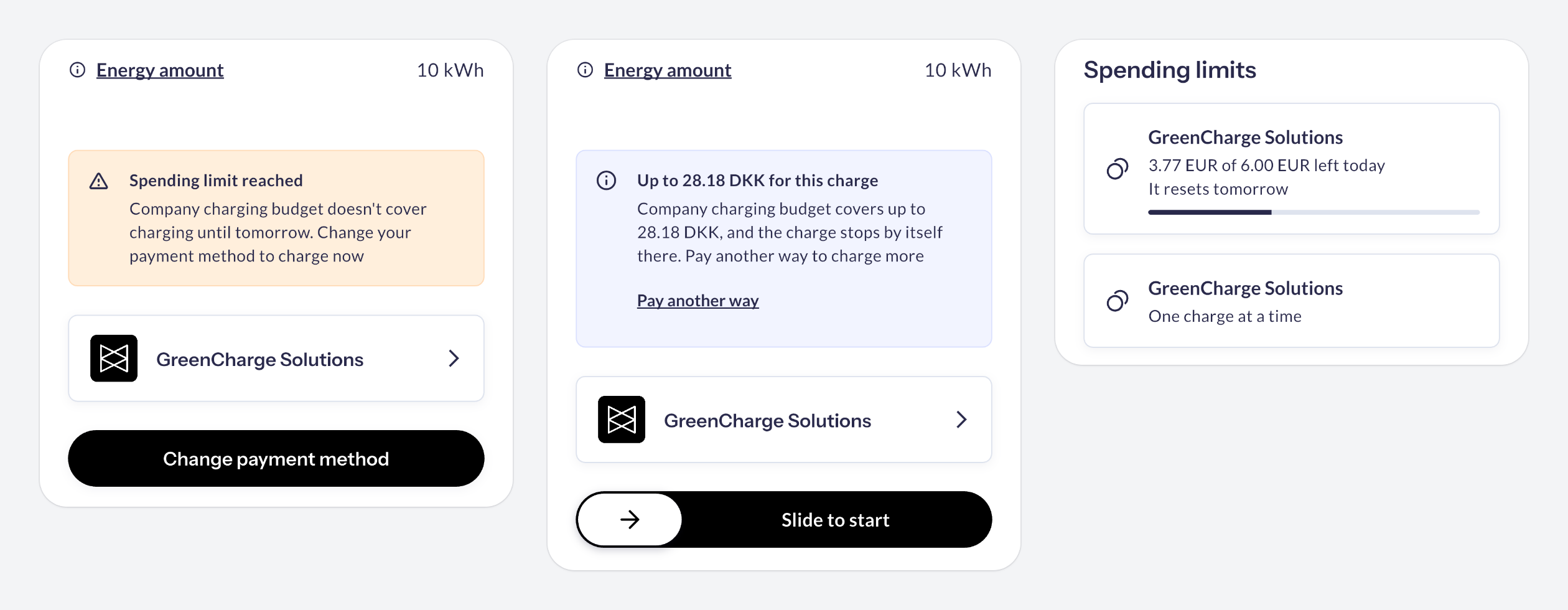
Before charging: the payment screen tells drivers when a rule refuses the charge, names the rule, and says when charging is allowed again. They can switch payment method and charge straight away.
Capped charges: when a rule caps the charge, the payment screen and the charging screen show "Up to 28.18 DKK for this charge", so the stop doesn't come as a surprise.
Me tab: a new Spending limits section shows each rule that can block the driver, what is left and when it resets, for example "3.77 EUR of 6.00 EUR left today".
Push notifications: drivers are told when a rule refuses their charge, and when their spend reaches the warning threshold you set.
In Hub:
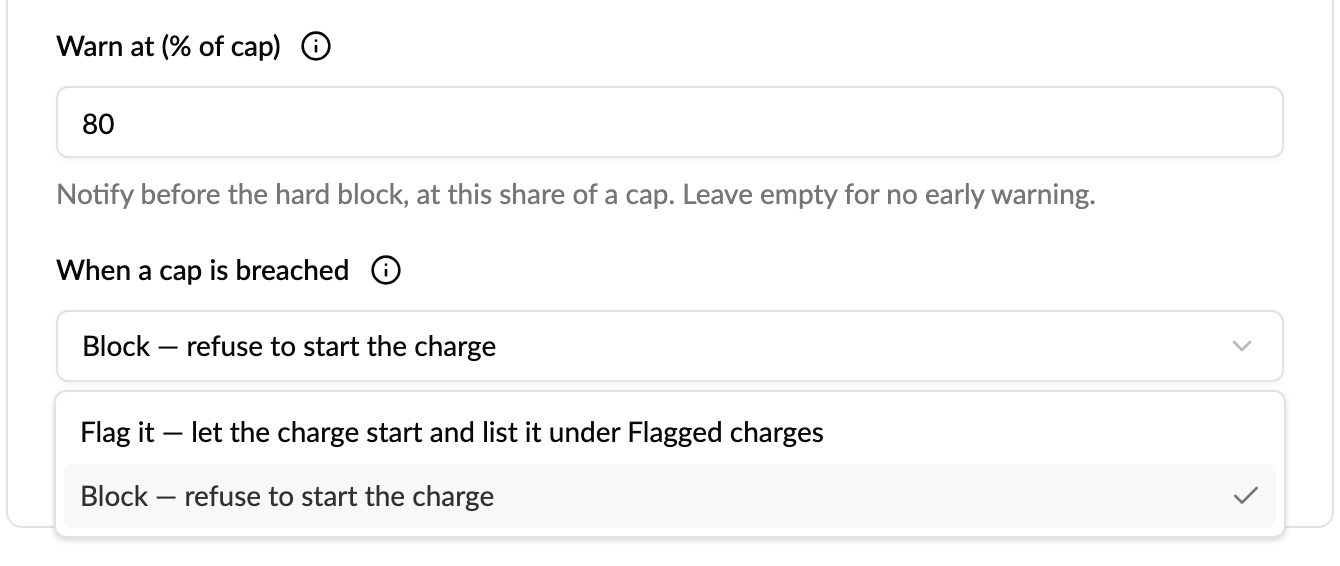
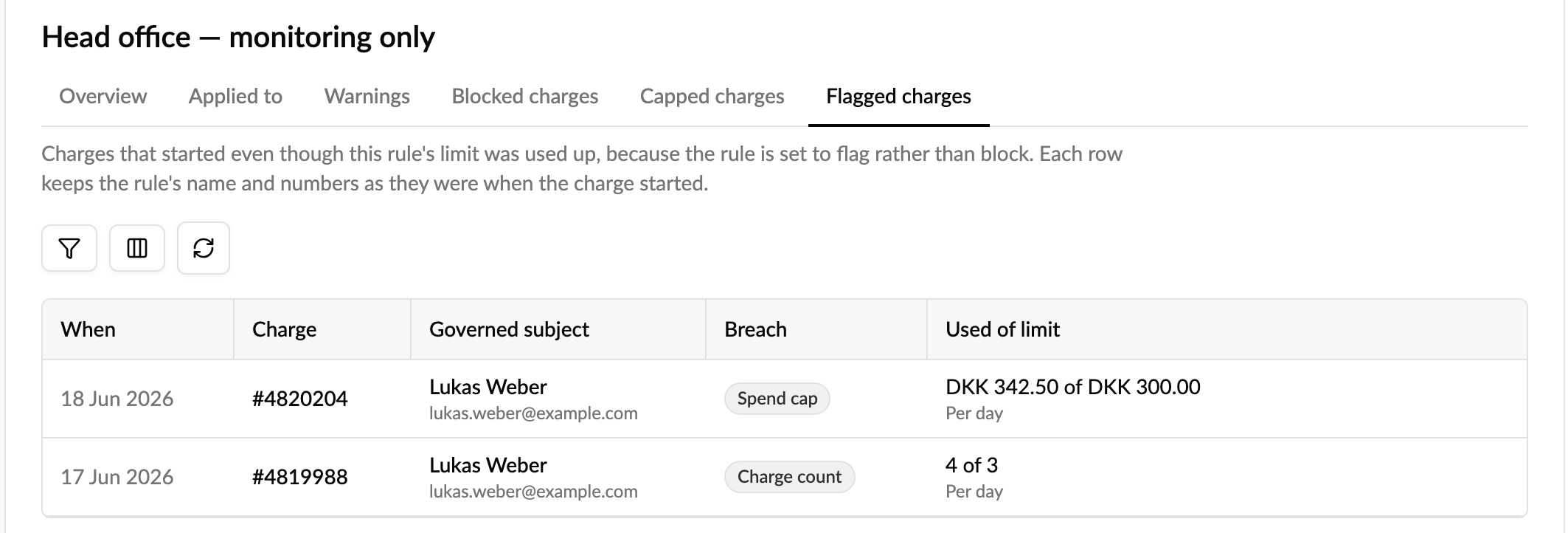
Flag or block: under When a cap is breached, choose Flag it to let the charge start and list it under the rule's new Flagged charges tab, or Block to refuse it.
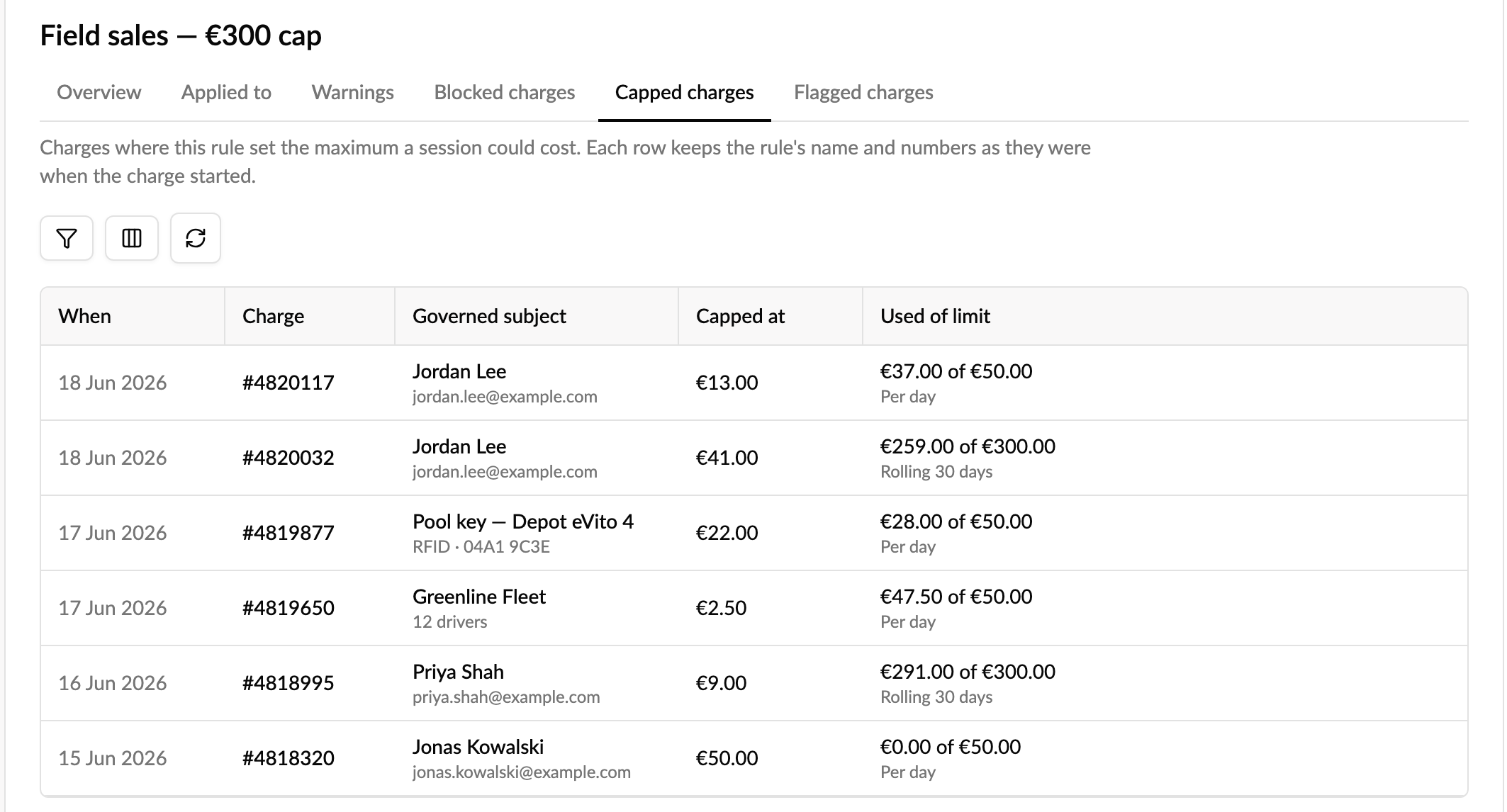
Capped charges: a new tab on each rule lists the charges where it set the most the session could cost. The charge page shows the same in a Spending limit card.
Member groups: apply a rule to a member group, and each member is capped on their own charging. Members who join or leave the group are covered from their next charge.
Many members at once: select members in an account's Members table and choose Apply spending limit.
Local resets: daily, weekly and monthly budgets reset at midnight in the rule's timezone (your operator's, unless the rule sets its own), not at midnight UTC.
Enforce spend caps: switching it off stops only the money limits. Charge counts, one charge at a time and allowed days still apply.
Why it matters
Until now a refused driver saw a generic error and had to contact support to find out why. Now they know which rule stopped them, when it frees up, and how to charge anyway with another payment method. Fleet managers can also watch who goes over budget with Flag it before they start blocking anyone.
Who it's relevant for
Fleet operators and employers who pay for their drivers' charging, the finance teams that own the budget, and their drivers.
How to use it
In Hub, go to EMP / Fleet > Spending limits and open a rule, or select New.
Under When a cap is breached, choose Flag it or Block.
Set Warn at (% of cap) so drivers get a heads-up before they reach the cap.
Activate the rule and apply it to accounts, drivers, member groups, vehicles or charge keys.
Drivers need the Monta app 2.105 or later to see their limits in the app.
Availability
Available now in early access.
Where to find it
Hub: EMP / Fleet > Spending limits. Monta app: the payment screen, the charging screen and the Me tab.