
Improvement
See which locations and accounts drive your Home statistics
Click any statistics card on Home to rank your locations and accounts behind it, and pin the ones you watch most.
- Stage
- Live
- Product
- Monta Hub
- Posted
What's new
The statistics cards on Home are no longer just totals. Click any card, such as Sessions per EVSE or Gross revenue, and a panel opens that ranks your locations by that figure. Switch to By account to rank your accounts instead. Each row shows a trend line for the period, sessions, energy, gross revenue, average session length, failed sessions and drivers, so you can see at a glance which sites are doing well and which need attention.
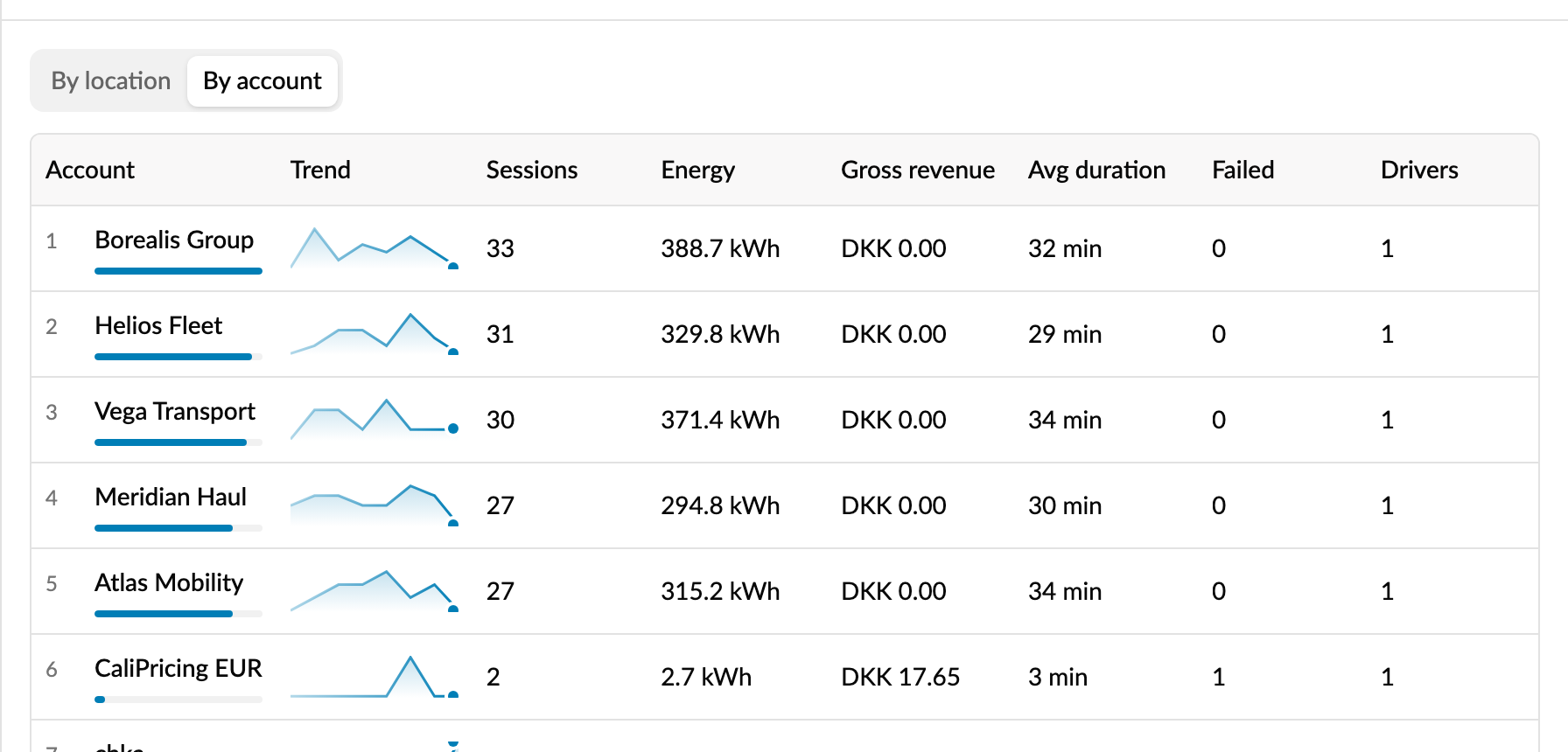
Click a row to see the charging sessions behind it, already filtered to that location or account and the same period. The charges list also has a new Location filter you can use on its own. The link to an open panel can be copied and shared with your team.
Pin what you watch. Pin a location or account to Home and it gets its own card with sessions, energy, gross revenue, a trend line and whether its EVSEs are online. You can pin from a panel or search for any location or account under Customize (previously the gear icon), including quiet sites that never make the top of the list. Pins follow the period you pick and stay with you on any device, up to 12 per operator.
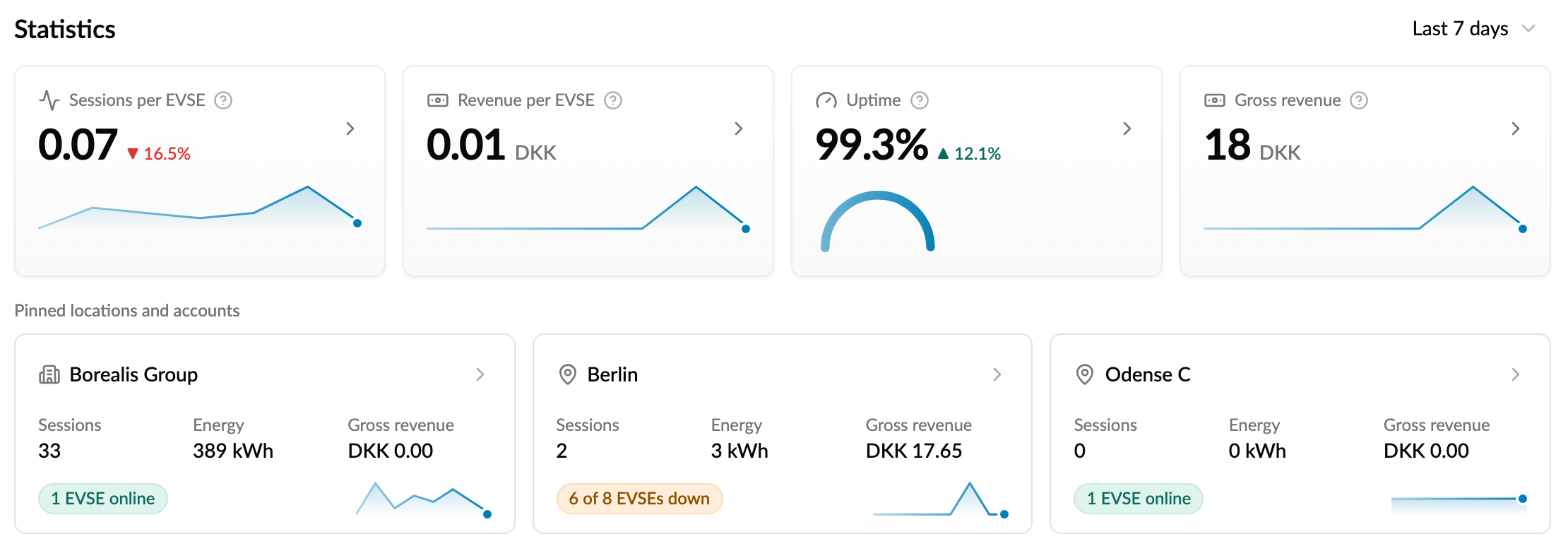
Clearer figures. Every card now has a help icon explaining what it measures. Uptime shows the share of charging sessions that did not fail, and opening it ranks your locations by failed sessions. When you narrow Home to some of your accounts, the statistics cards now follow that selection too.
Why it matters
A network total rarely tells you what to do next. If you run many separate sites, you can now find the location behind a dip in revenue or a spike in failed sessions in two clicks, and keep your most important sites in view every time you open Hub.
Who it's relevant for
Operators with several locations or accounts who use Home to keep an eye on how their network is performing.